



Even great content can get lost if your internal linking is weak.
Internal links guide readers through your site, help Google understand your pages, and improve your website’s dwell time. Here’s my experience using the best internal linking tools for WordPress, plus tips for picking the right one for your site.
Overview of the Best Internal Linking Tools
A brief look at what each tool does best, in a few words.
| Tool | Price Range | Key Features | Why I Chose It |
|---|---|---|---|
| Link Whisper | $97–$397/year | Real-time suggestions in the editor | AI-powered internal suggestions |
| Yoast SEO (Premium) | $99/year | SEO analysis with link hints | Comprehensive SEO plugin |
| Rank Math (Pro) | From ~$96/year | AI Link Genius, automated keyword linking | Built-in linking features at a lower entry price |
| WILO | Free | Finds links for every new post | Dedicated linking opportunities |
| Internal Link Juicer | Free | $69.99–$1299/year | Converts keywords into links automatically | Automated keyword linking |
| LinkStorm | $30–$200/month | Deep study of your site’s link structure | Focused link structure analysis |
| YARPP | Free | Shows related posts at the end of articles | Related posts display |
My 7 Favorite WordPress Internal Linking Tools: Reviewed
1. Link Whisper – AI-Powered Internal Linking Suggestions
Link Whisper gives you real-time suggestions as you write on WordPress. I love how it scans your text on the spot and shows you the best places to add links.
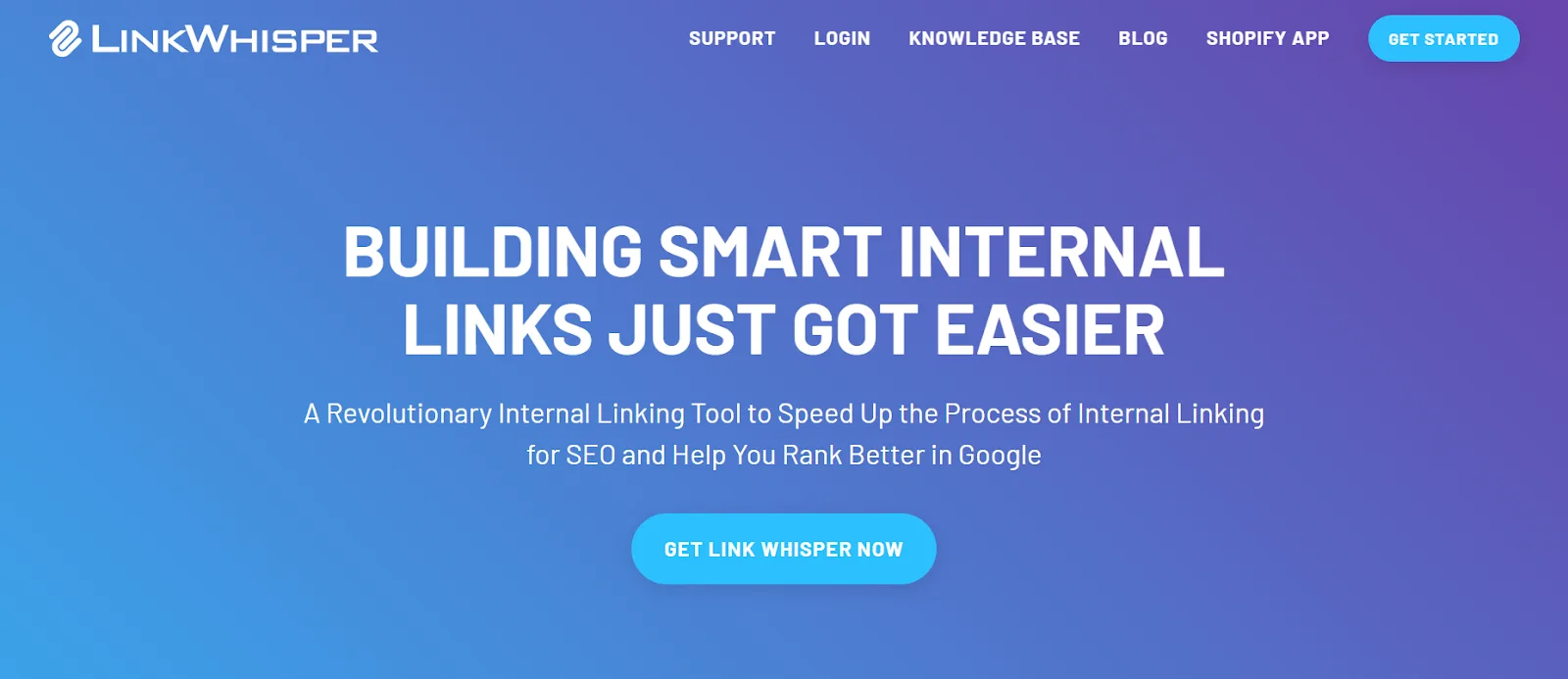
It makes the linking process fast and efficient, and helps make sure every post on your site connects to relevant existing content.
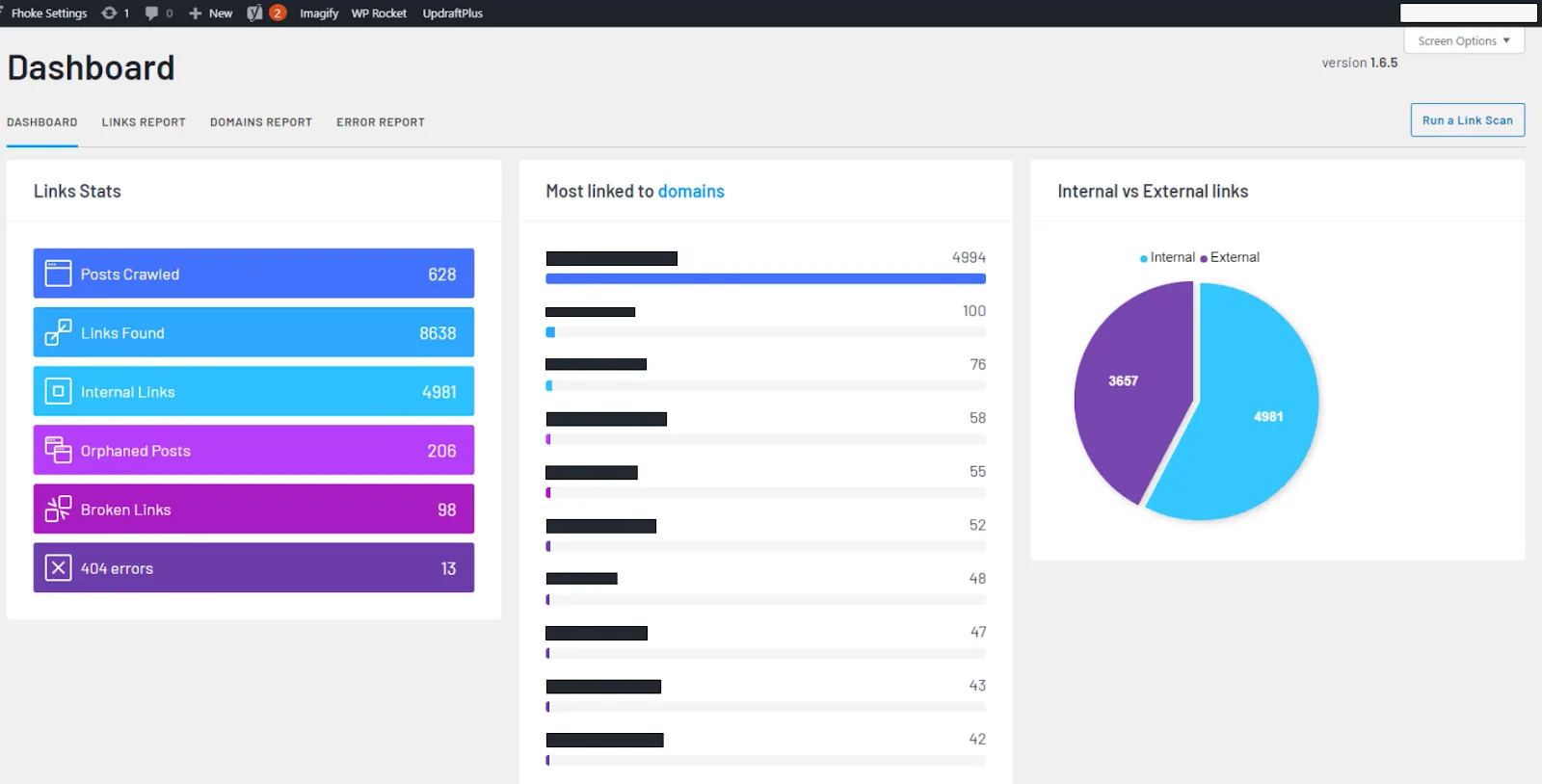
Link Whisper also scans your whole site to find pages that don’t get enough links, helping you fill those gaps and strengthen your overall internal linking structure. You can customize link suggestions to your preferences too, so the anchor text still sounds natural.
For all of my and my clients’ sites that use Link Whisper, internal linking mostly happens on autopilot with minimal effort. That convenience isn’t cheap though, a single-site license runs $97/year, and cost climbs with the number of sites.
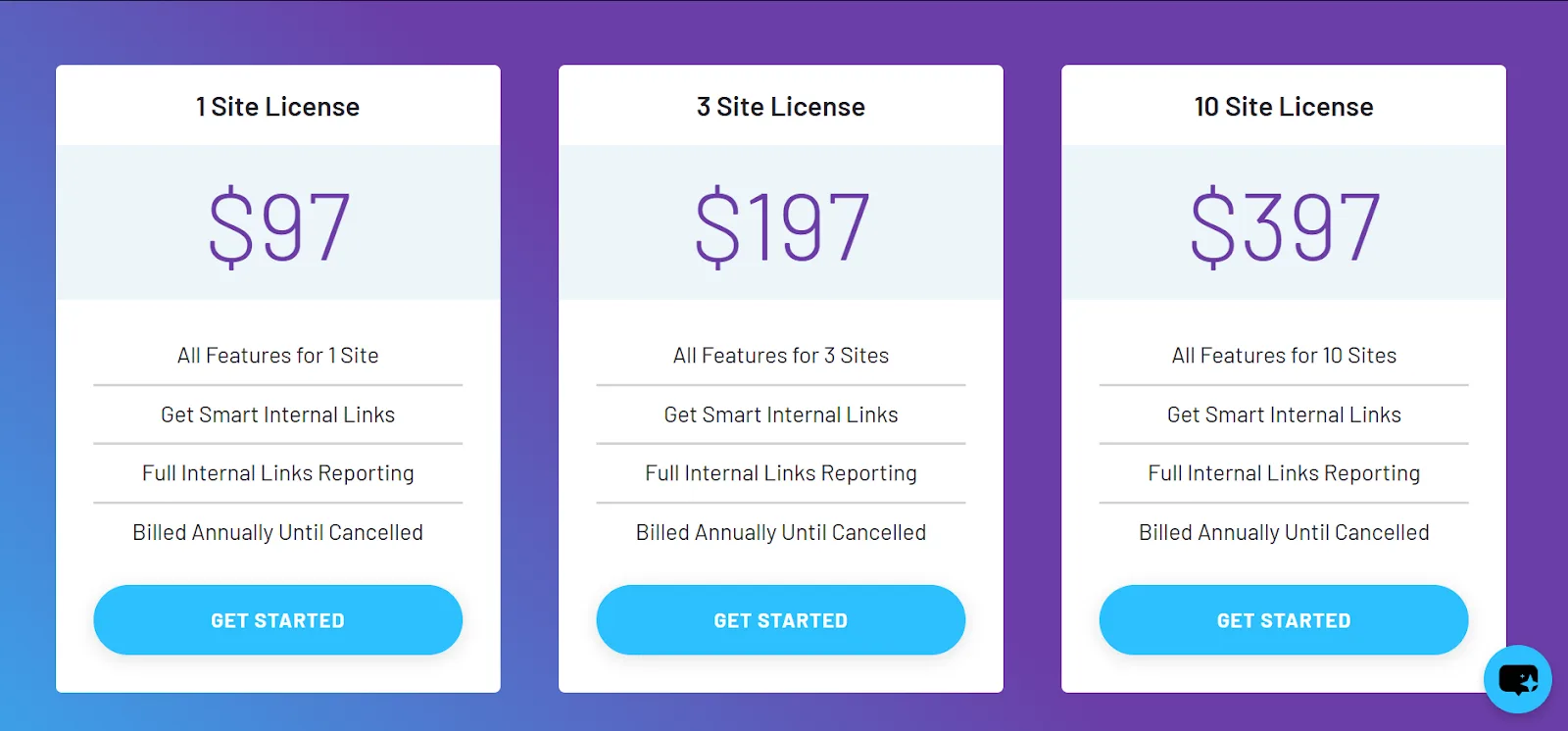
The upfront cost might seem like a lot, but it pays off long-term. I’ve personally found it worth it.
| Pros | Cons |
|---|---|
| Real-time link suggestions while you write | Only works with WordPress |
| Covers your entire site for orphan pages | May need some fine-tuning for perfect results |
| Customizable settings for natural-sounding links |
2. Yoast SEO Premium – SEO Plugin That Shows Internal Linking Opportunities
I’ve used Yoast SEO on various sites for the longest time. It now also gives internal linking hints in its premium version.
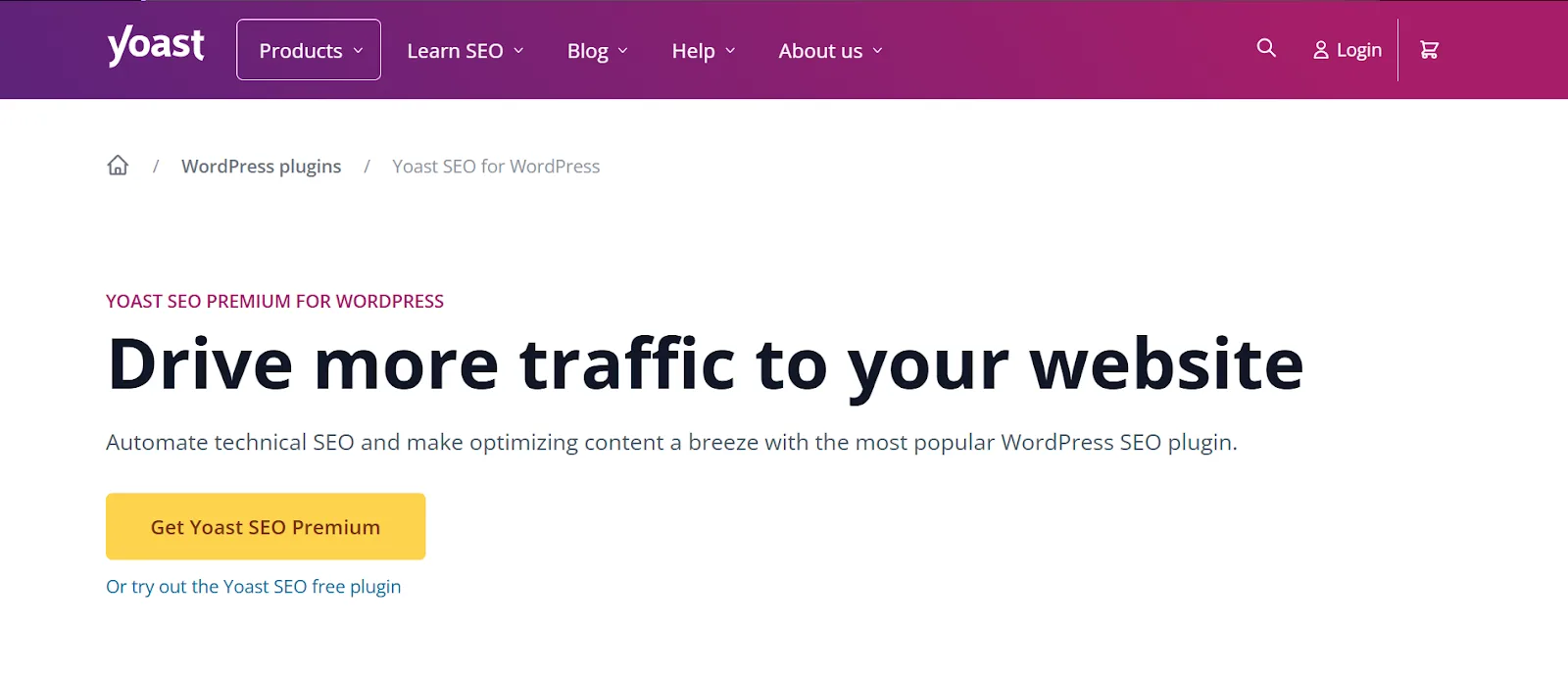
It gives clear suggestions on which posts to link to while you’re still writing, which helps integrate links naturally and write better anchor text compared to going back and internally linking after publishing.
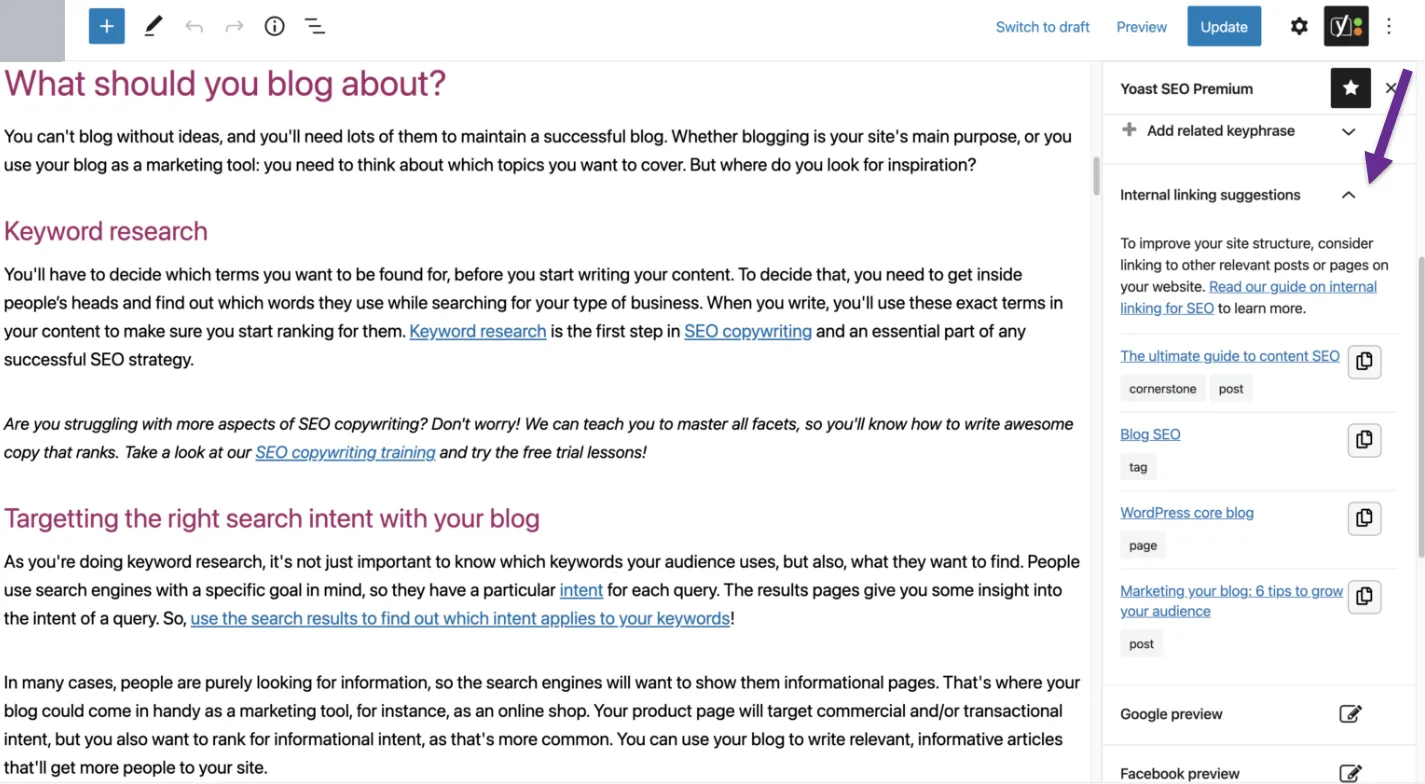
It also checks your page for keywords, readability, and other SEO factors, all in one place. Chances are you already have Yoast installed, it’s an extremely common WordPress plugin. If you’re not seeing internal linking suggestions, that means you’re on the free version.
To unlock the feature, you need the full Yoast SEO Premium plan, starting at $99/year. That’s pricey, but it does a lot more than internal linking, giving you tools and insight to help you publish genuinely optimized content.
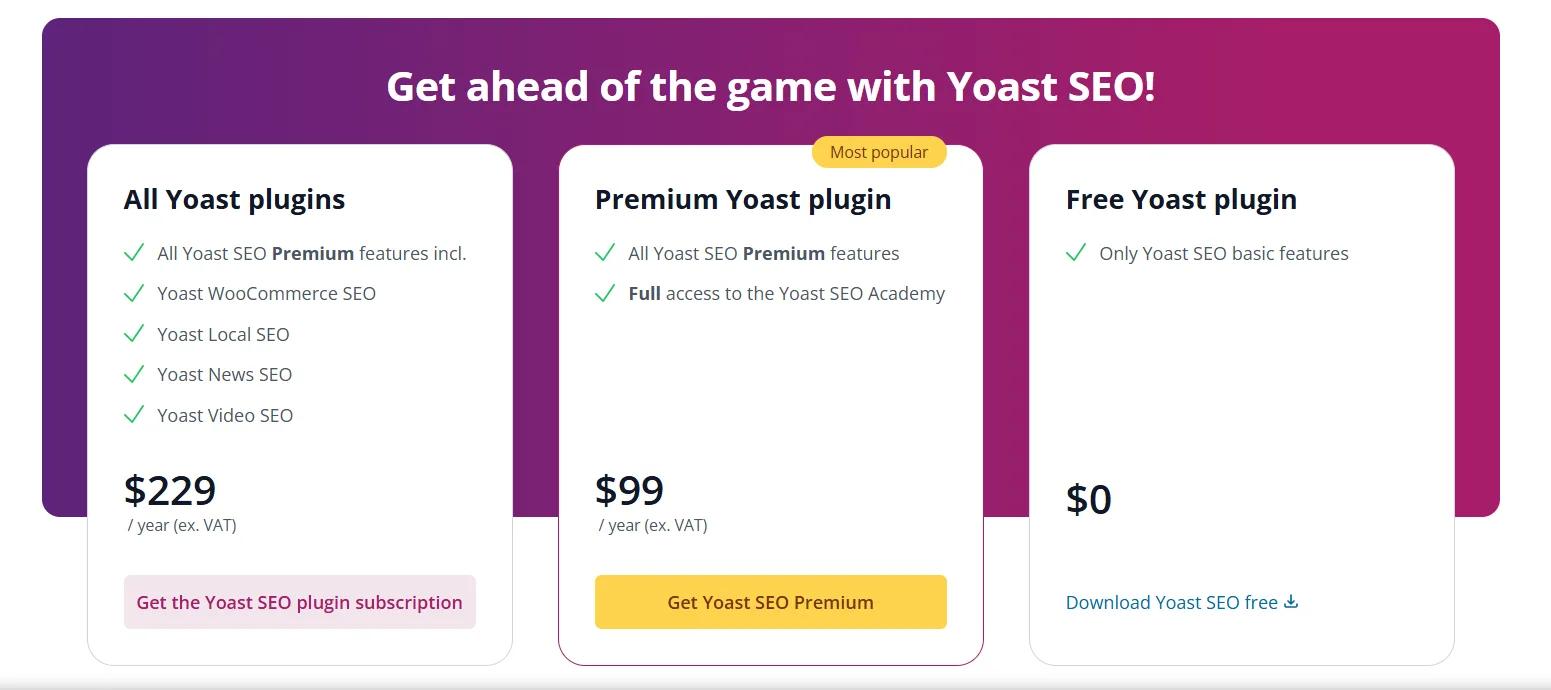
Overall, Yoast makes it simple to connect related posts and strengthen your site’s internal linking, and your broader SEO along with it.
| Pros | Cons |
|---|---|
| Trusted SEO tool with clear link hints | Internal linking hints only in the premium version |
| Comprehensive SEO checks in one plugin | Can feel complex for complete beginners |
| User-friendly tips improve your linking strategy |
3. Rank Math Pro – Built-In Linking Features at a Lower Entry Price
Rank Math has grown into one of the most widely used WordPress SEO plugins, and it’s a genuine Yoast alternative worth considering if internal linking is your main reason for upgrading.
Its Pro plan bundles a few linking-specific features directly: AI Link Genius suggests internal links as you write, Automated Keyword Linking builds links from target keywords across your site automatically, and a built-in Broken Link Checker flags dead links before they hurt your SEO or user experience.
The free version of Rank Math is already generous for a WordPress SEO plugin, but the linking features are Pro-only. Pro starts at roughly $96/year for unlimited personal sites, considerably less than a single Link Whisper license, with Business and Agency tiers above it for people managing client sites, adding features like a keyword rank tracker and white-labeled reporting.
If you’re already choosing between SEO plugins and want internal linking bundled in rather than paying for a separate tool, Rank Math is worth a serious look.
| Pros | Cons |
|---|---|
| Internal linking features bundled into a broader SEO plugin | Linking features require the Pro plan, not free |
| Lower entry price than a dedicated linking tool | Interface has a learning curve given how much it packs in |
| Generous free plan for everything else |
4. WILO – Dedicated Linking Opportunities
WILO is a handy WordPress plugin that helps you find the best internal links for every new post on your site.

I mostly use it for its automatic link discovery feature, Link Explorer.
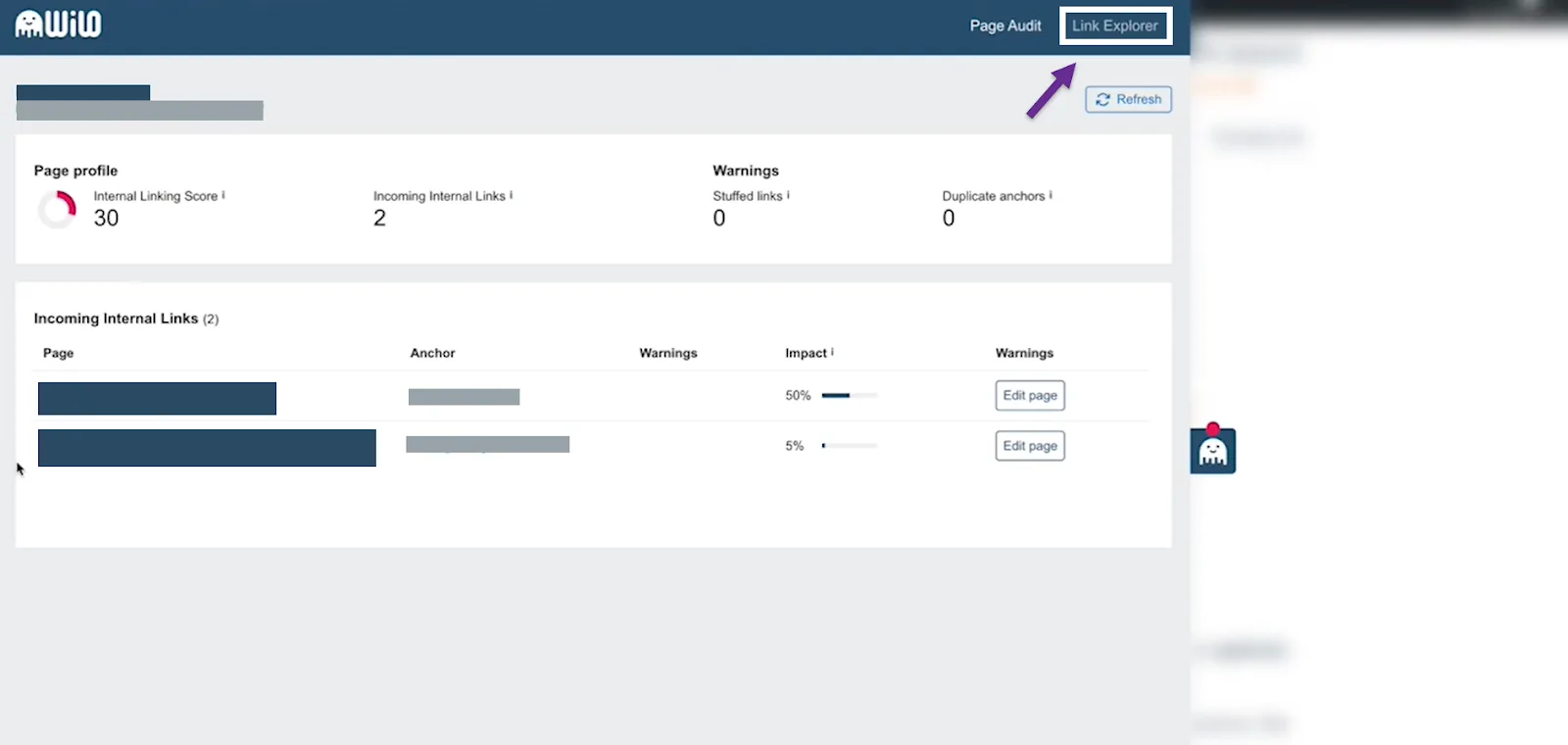
Add relevant keywords, and WILO scans your site for published articles that match, then suggests links from existing posts on that topic.
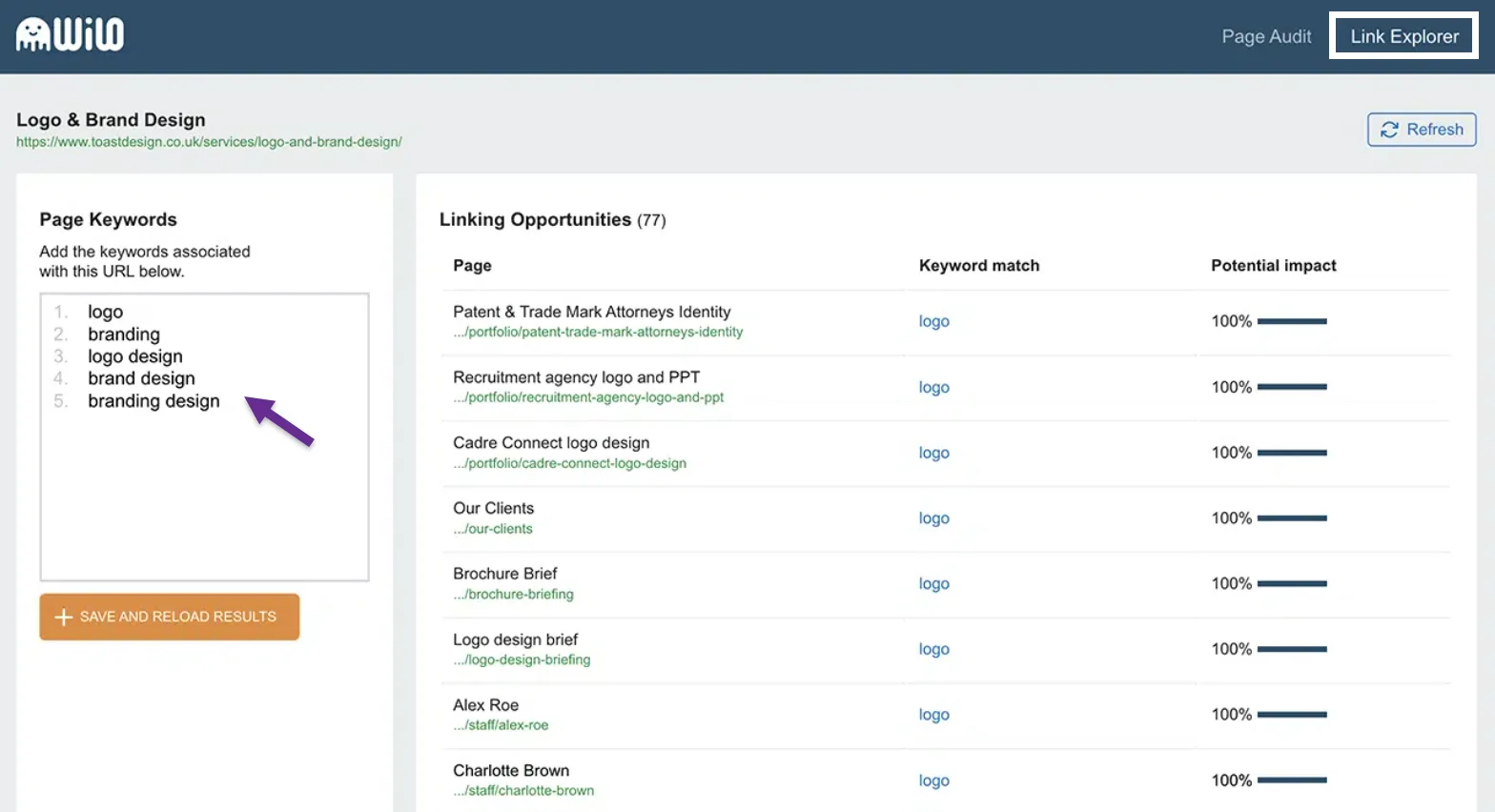
It helps pinpoint the exact anchor text to use where you’re linking.
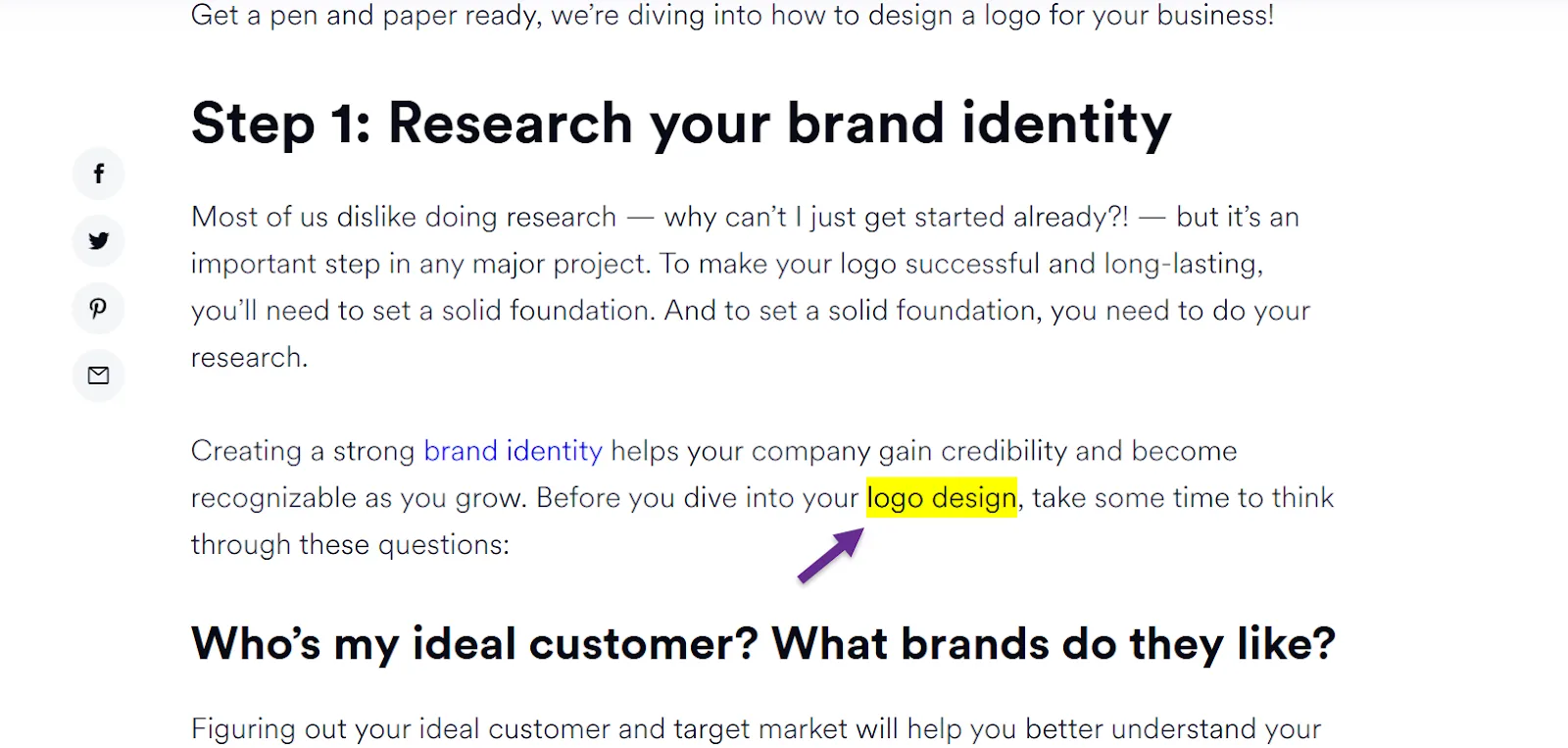
This keeps your site internally connected and helps visitors find more related information as they browse. The dashboard is simple, showing a list of suggested links you can decide to add or skip, and it flags pages with no links at all so you can fix those gaps.
The best part is that WILO is completely free, and its developers seem to want to keep it that way.
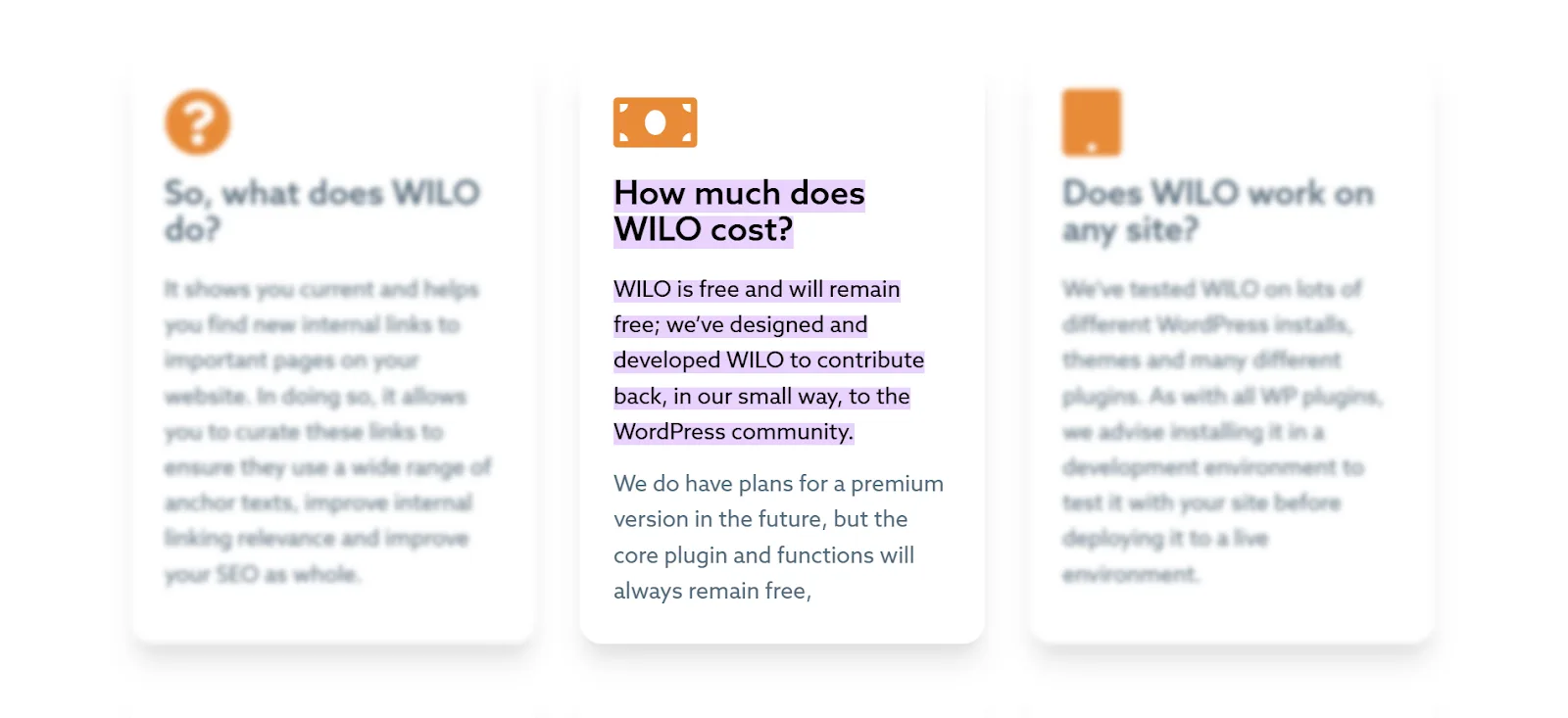
If you want a free internal linking solution for WordPress, I’d genuinely recommend WILO.
| Pros | Cons |
|---|---|
| Automatically finds related links | Fewer advanced options compared to some tools |
| Simple, easy-to-use dashboard | Best for WordPress sites only |
| Helps fix orphan pages |
5. Internal Link Juicer – Automated Keyword Linking
Internal Link Juicer adds internal links based on specific keywords.
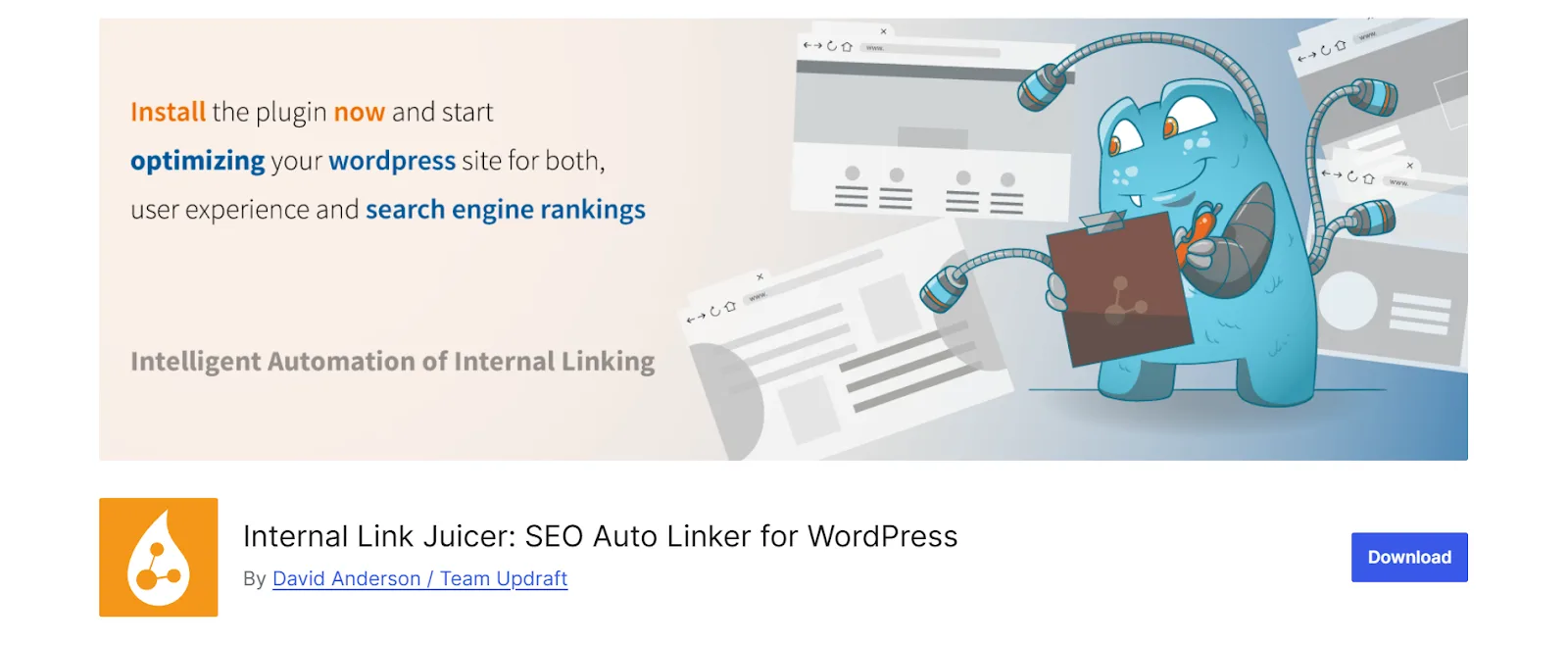
I like how it automatically converts keywords into links across posts. Set the keywords you want to target, and Link Juicer finds them in your content, then links them to your chosen pages.
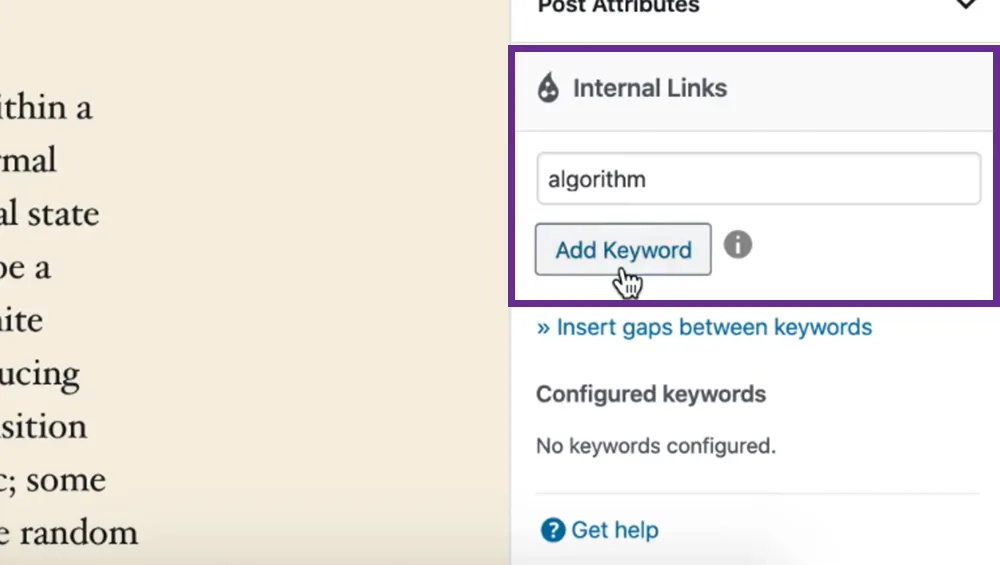
That keeps content consistently linked to relevant pages without much manual work. Bulk editing is genuinely useful too, especially on larger sites where updating links by hand would take forever.
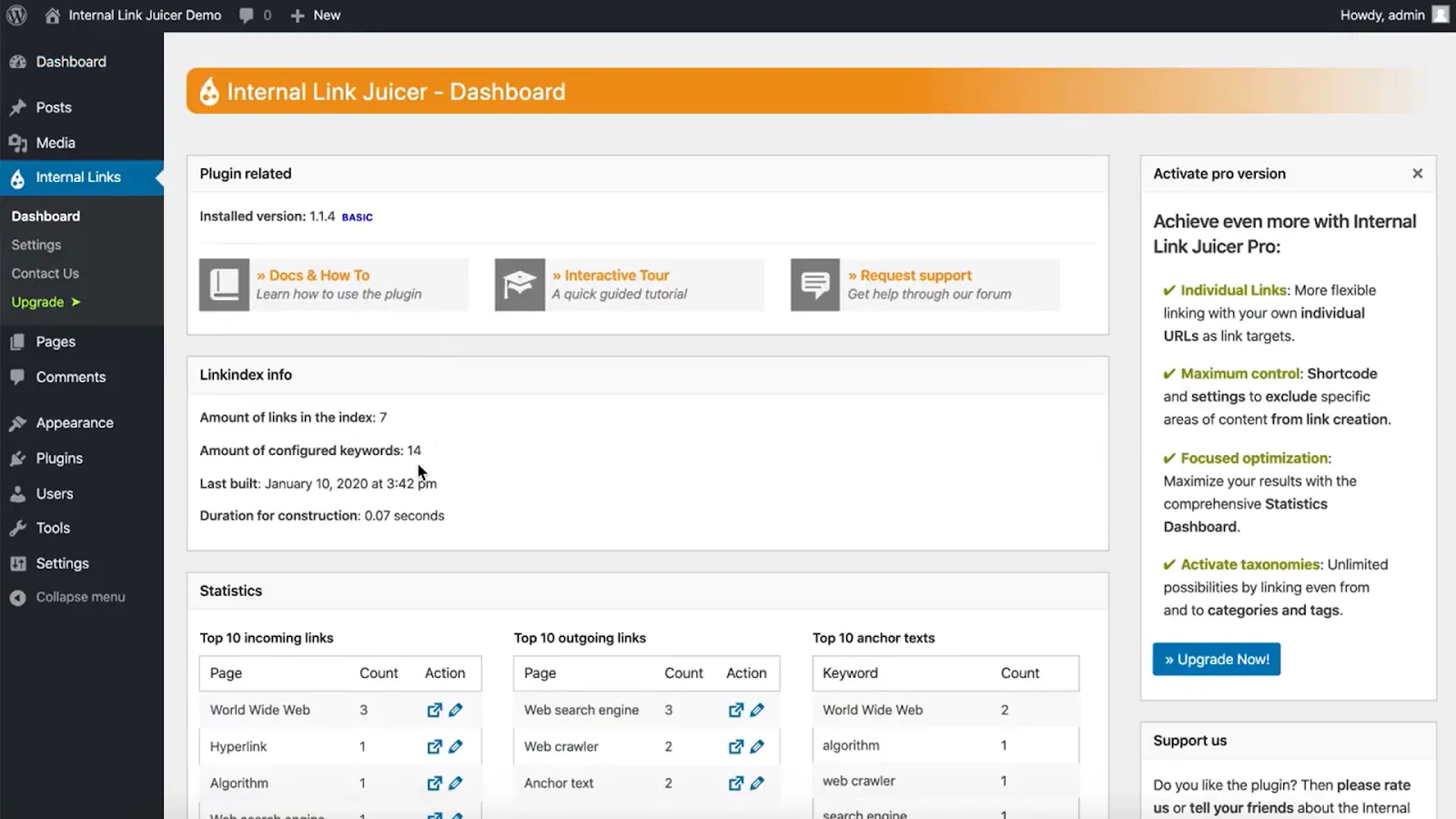
You control exactly which pages get linked where, and you can still adjust anchor text so it reads naturally within the content.
The free version covers the basics. Advanced features need the paid plan, starting at $69.99/year for one site.
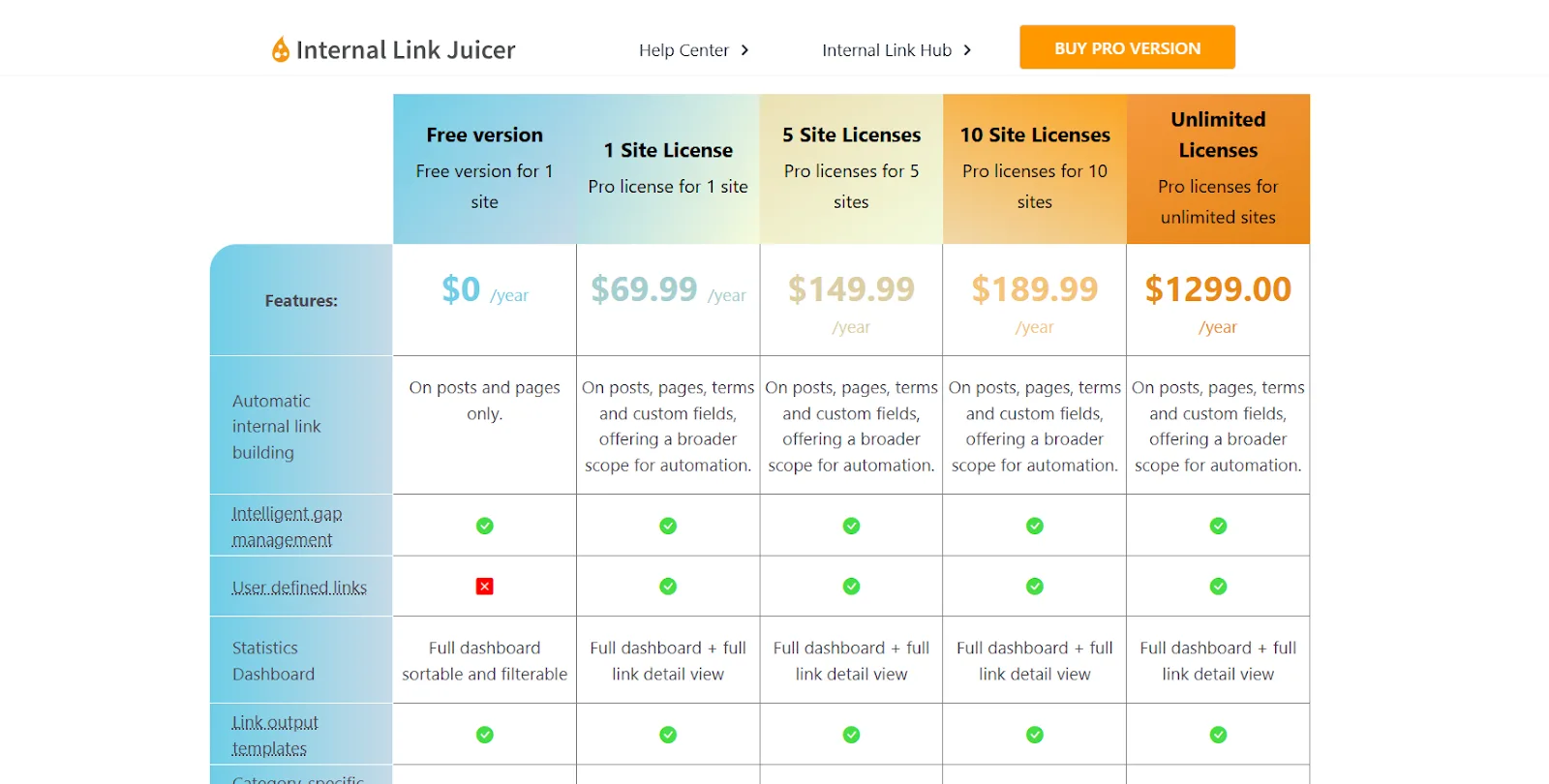
If you manage more than one site, buying licenses in bundles of 5 offers better value. Setup may need some fine-tuning, but it’s worth it for the manual linking time you save later.
| Pros | Cons |
|---|---|
| Automatically converts keywords into links | Setup may require fine-tuning |
| Bulk editing saves time on large sites | Can over-optimize if not managed properly |
| Customizable settings keep anchor text natural |
6. LinkStorm – Focused Link Structure Analysis
LinkStorm looks at your whole site and shows you where to improve internal linking.
I love how deeply it analyzes site structure to surface internal linking opportunities.
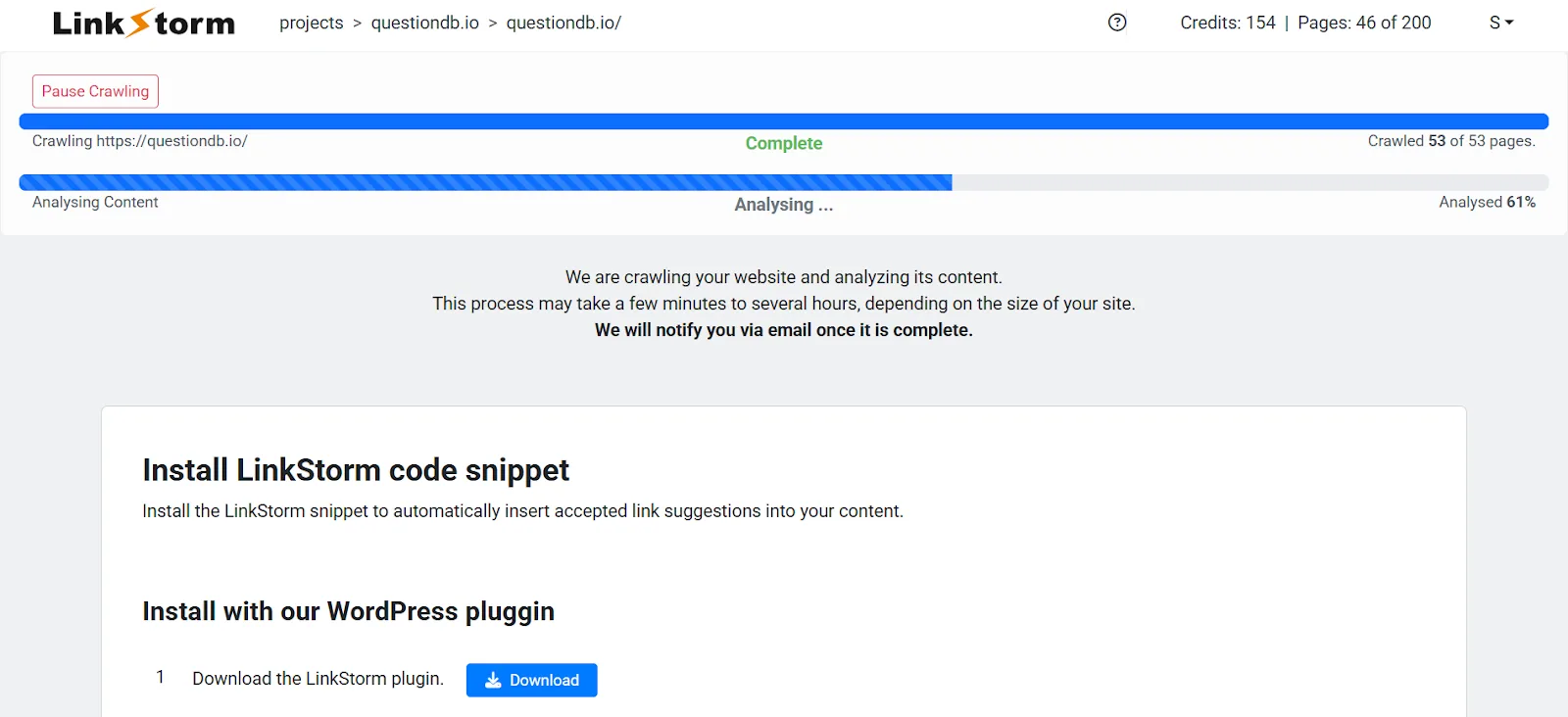
It builds clear reports and charts showing how link equity flows through your site and where the gaps are. Interactive visual dashboards make it easy to see which pages need more links.
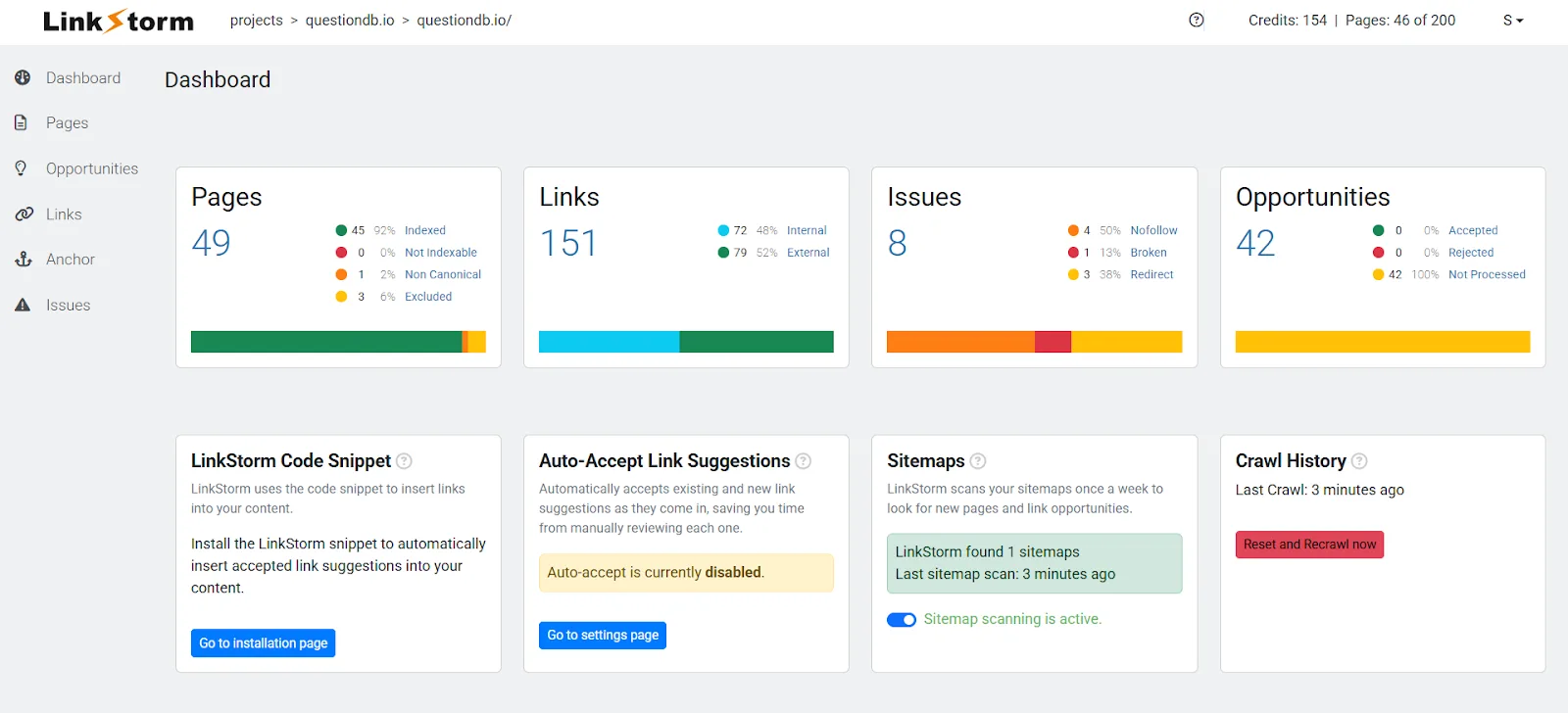
That visual data gives a clear picture of your site’s hierarchy and where to add links for better SEO and UX, plus actionable recommendations on which pages need more.
Paid plans start at $30/month and go up to $200/month depending on your needs. That can add up over time, but it avoids a large upfront fee, unlike Link Whisper or Yoast.
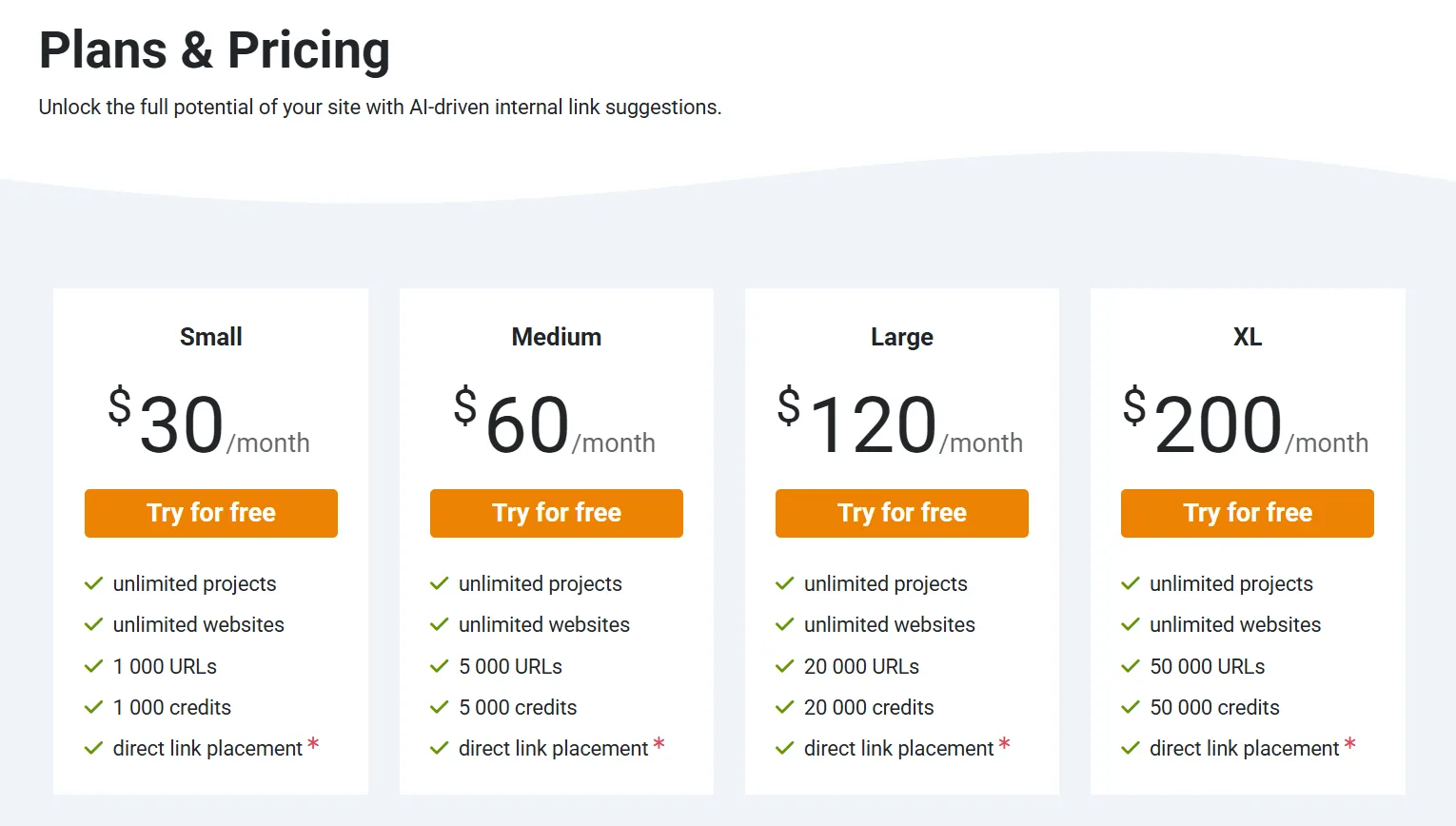
It takes a little time to learn, but the detailed insights genuinely help you rework and improve your internal linking strategy without a ton of manual effort.
| Pros | Cons |
|---|---|
| Deep, data-driven analysis of site structure | Steeper learning curve for beginners |
| Clear visual dashboards help spot gaps | Pricing may not suit small sites |
| Actionable recommendations improve link flow |
7. YARPP (Yet Another Related Posts Plugin) – Related Posts Display
YARPP is a simple but genuinely effective plugin that shows related posts at the end of your articles.

I love how it automatically surfaces related posts at the bottom of each article, finding pieces similar to the one a reader just finished.

That keeps readers on your site longer and boosts dwell time and page views. Best of all, YARPP is free, which makes it a solid fit for bloggers or small business owners working with a tight budget.
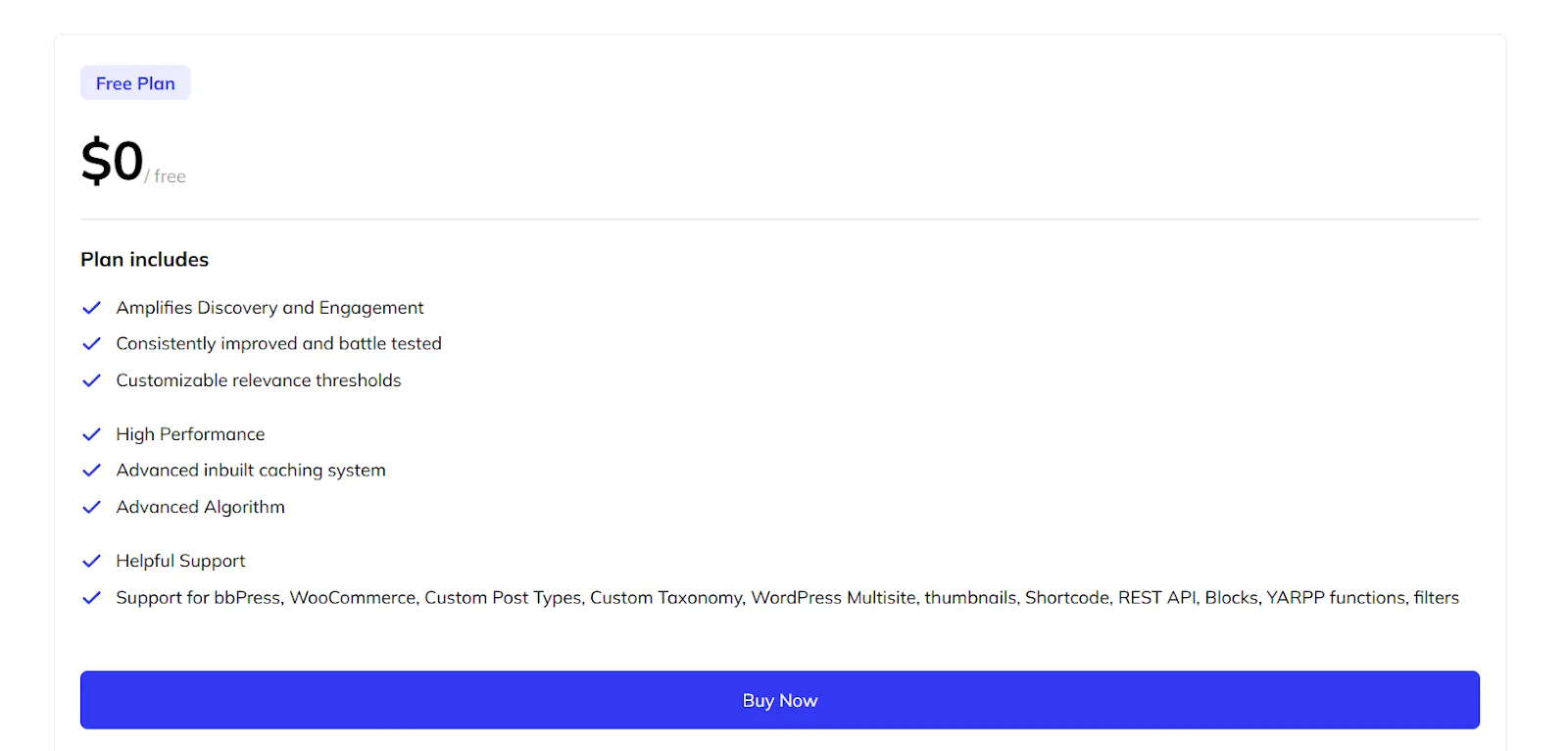
It’s also easy to customize, you can change the number of related posts shown or adjust the template to match your site. Simple, adds real value, and needs almost no extra work once it’s set up.
| Pros | Cons |
|---|---|
| Automatically displays related posts | Limited advanced features for deeper SEO needs |
| Free to use | May not play well with highly customized themes |
| Simple to customize for your site |
How to Select the Right Internal Linking Tool
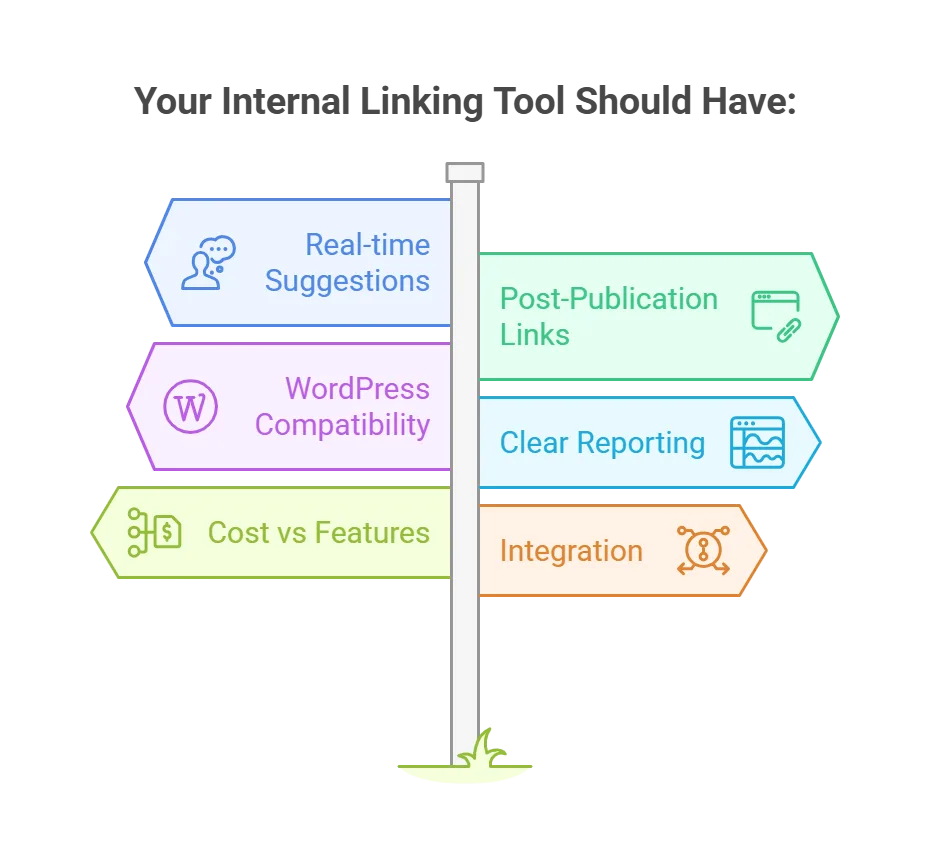
↳ Know your needs. Want real-time link suggestions as you write? Go with something like Link Whisper. Prefer finding links after you publish? WILO fits better.
↳ Match your platform. On WordPress, native plugins like Yoast SEO Premium, Rank Math Pro, Link Whisper, or WILO make the most sense. Confirm compatibility with your CMS before buying anything.
↳ Look for clear reporting. Pick a tool with an easy-to-read dashboard that clearly flags broken links, orphan pages, and link gaps. LinkStorm’s visual reports make problems easy to spot fast.
↳ Balance features and cost. Free tools like YARPP or WILO cover the basics. For more advanced automation, look at Yoast SEO Premium or Rank Math Pro. Try free trials first to confirm a tool actually fits before paying.
↳ Check integration. Make sure the tool connects with your existing systems, Google Search Console, your CRM, Google Sheets, so your workflow stays smooth.
Best Practices for an Effective Internal Linking Strategy
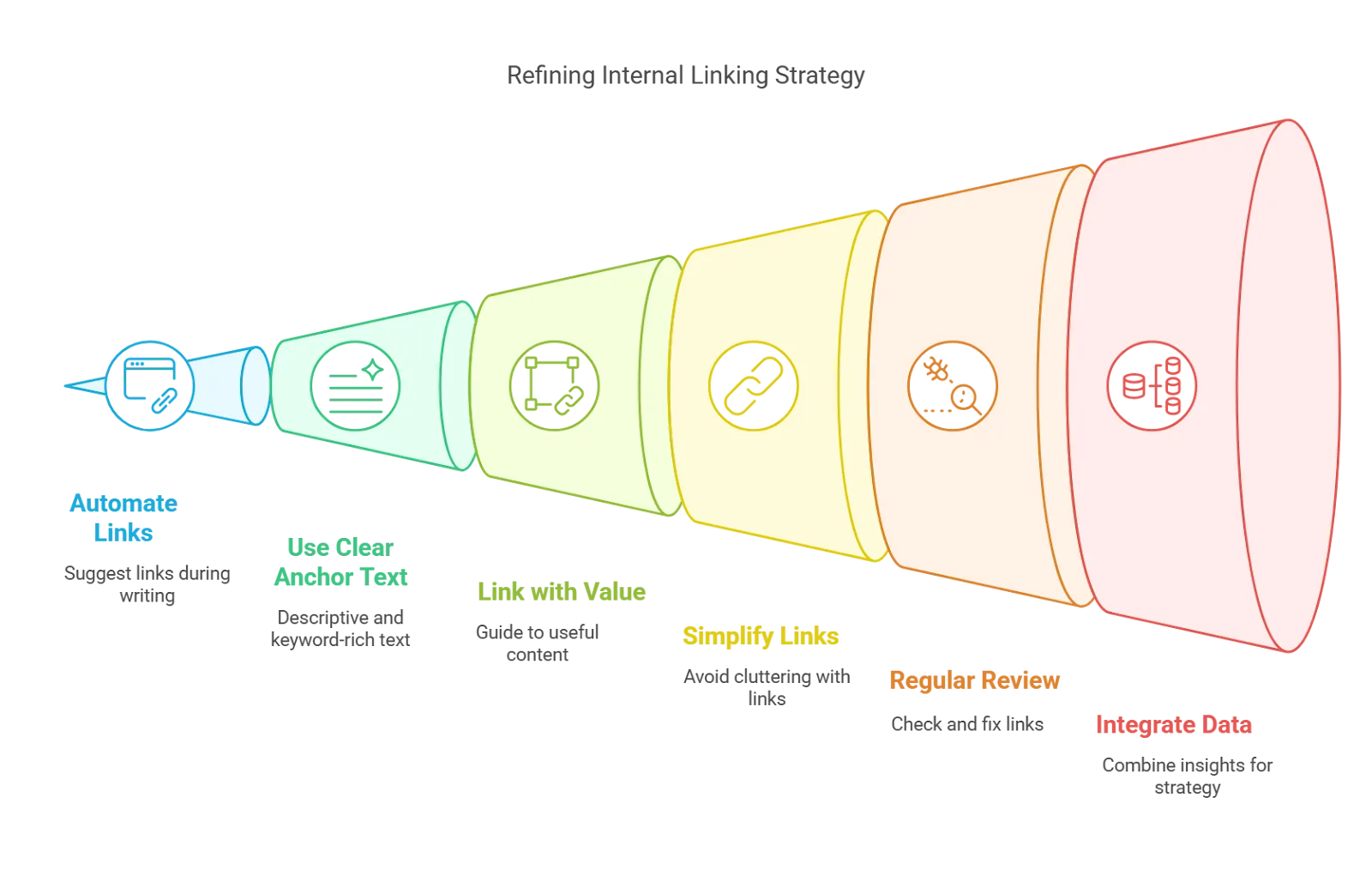
↳ Automate when you write. Set your tool to suggest links while you’re creating new posts, so you build links as you go instead of retrofitting them later.
↳ Use clear anchor text. Choose descriptive, keyword-rich anchor text instead of vague phrases like “click here,” and vary it so it reads naturally.
↳ Link only when it adds value. Every internal link should guide readers to something genuinely useful. Use high-authority pages to push traffic toward newer or under-linked ones.
↳ Keep it simple. Don’t overdo it. Add just enough links to guide readers without cluttering the page.
↳ Review regularly. Check your internal links on a schedule using your tool of choice. Fix broken links and update old URLs as soon as you spot them, and track behavior like bounce rate to see whether your links are actually helping.
↳ Integrate your data. Export reports to Google Sheets or connect them to your CRM to keep everything in one place, then adjust your strategy based on what you find.
Make the Best of Your Internal Linking Tools
Look at your current workflow and pick a tool that actually fits it. Test free trials to see what works best with your site, and review your links regularly as you go.
Backlinks matter just as much, check out these guides to help manage and earn them:
↳ How I Check Backlink Quality to Maintain a Healthy Link Profile
↳ PBN Backlinks – What They Are & Why I Avoid Them
Or browse the full link building tools directory for every tool covered on the site.
Frequently Asked Questions
What is the difference between a hyperlink and an internal link?
A hyperlink is any clickable element that directs users to a target URL, external or internal. An internal link specifically connects pages within the same website. Internal links help organize content and distribute authority across your site, guiding both users and search engines through your information.
What is the difference between a link and a href?
A link is the visible, clickable element, text or an image, that users interact with. The href attribute in HTML holds the actual URL the link points to. The link is what users see; href defines where it directs them.
What is an example of an embedded link?
An embedded link is integrated directly into content. In a blog post about healthy eating, for instance, you might embed a hyperlink on the phrase “organic recipes” leading readers to a detailed recipe page on your site. This seamless integration improves user experience and strengthens your site’s internal structure.
Which is the best way for internal linking?
Build a natural, user-focused network. Link related content using descriptive and varied anchor text, prioritize linking from high-authority pages to newer ones, and regularly audit your links to fix broken or orphan pages. This improves both navigation and SEO.
How many internal links are too many?
There’s no fixed number, but keep it natural. Too many links, especially if forced, can overwhelm readers and confuse search engines. Link only to content that adds value, so each link supports the overall narrative and helps users navigate to genuinely useful information.
How do I create an internal link?
Highlight the text or image you want to use, click “insert link” in your editor, enter the URL of another page on your site, and save. This works in most content management systems and helps build a connected, user-friendly site structure.