


![How I Use Google Search Console for Keyword Research [Free Template + Checklist]](https://cdn.questiondb.io/articles/how-to-use-google-search-console-for-keyword-research/hero.webp)
You don’t need expensive tools for keyword research. There are valuable keywords sitting right under your nose, for free.
Google Search Console already knows which terms are driving traffic to your site. The trick is knowing how to pull that data out and double down on what’s already working.
This walks through exactly how I use GSC for keyword research, step by step.
GSC Keyword Research Template
I put together a simple spreadsheet you can use to log everything in one place as you work through the steps below.
How to use it:
- Open the template and copy your exported GSC data (Query, Clicks, Impressions, CTR, Position) into the matching columns.
- Add or edit columns as you like, things like “Semrush Volume” or “Action Required.”
- Update the “Action Required” column as you optimize pages. For example: “Revise meta description” or “Add FAQ about X topic.”
Google Search Keyword Research Checklist
- Export your queries from GSC.
- Sort by Clicks to find top performers (improve or expand these).
- Sort by Impressions to find low-CTR queries (fix the snippet, or push rank off page 2).
- Check the Pages tab to see each URL’s queries for easy-win keywords.
- Note any brand-new queries worth a dedicated page.
- (Optional) Cross-check search volume or difficulty in Semrush.
- Update content or site structure based on what you find.
- Compare date ranges in GSC a few weeks later to see what changed.
Before getting into the keyword research itself, you’ll need Search Console actually set up with your property. Already have it running? Skip ahead.
Step-by-Step Guide to Using GSC for Keyword Research
Step 1: Open the Performance Report
Start in the Performance tab. It shows how many clicks your site got from Google’s organic search, how many times you showed up in results (impressions), your average click-through rate, and your average position.
Open Performance → Search Results.
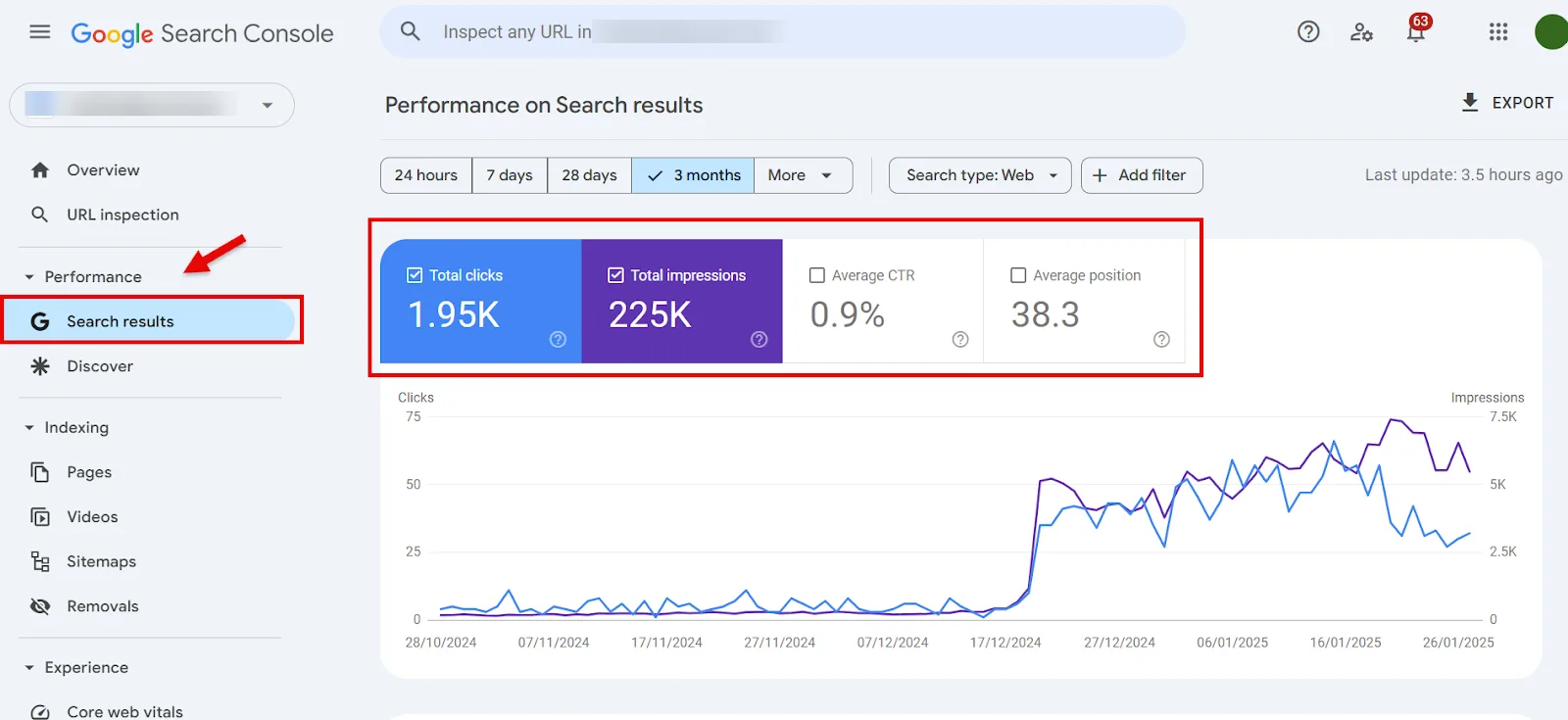
Check all four metrics:
↳ Total Clicks: how many times people clicked your site from a Google search result.
↳ Total Impressions: how many times your site showed up in results, whether or not it got a click.
↳ Average CTR: the share of impressions that turned into clicks (Total Clicks ÷ Total Impressions × 100).
↳ Average Position: your average ranking across the queries you appeared for.
Below that graph you’ll find:
↳ Queries: the actual search terms people typed before seeing or clicking your site.
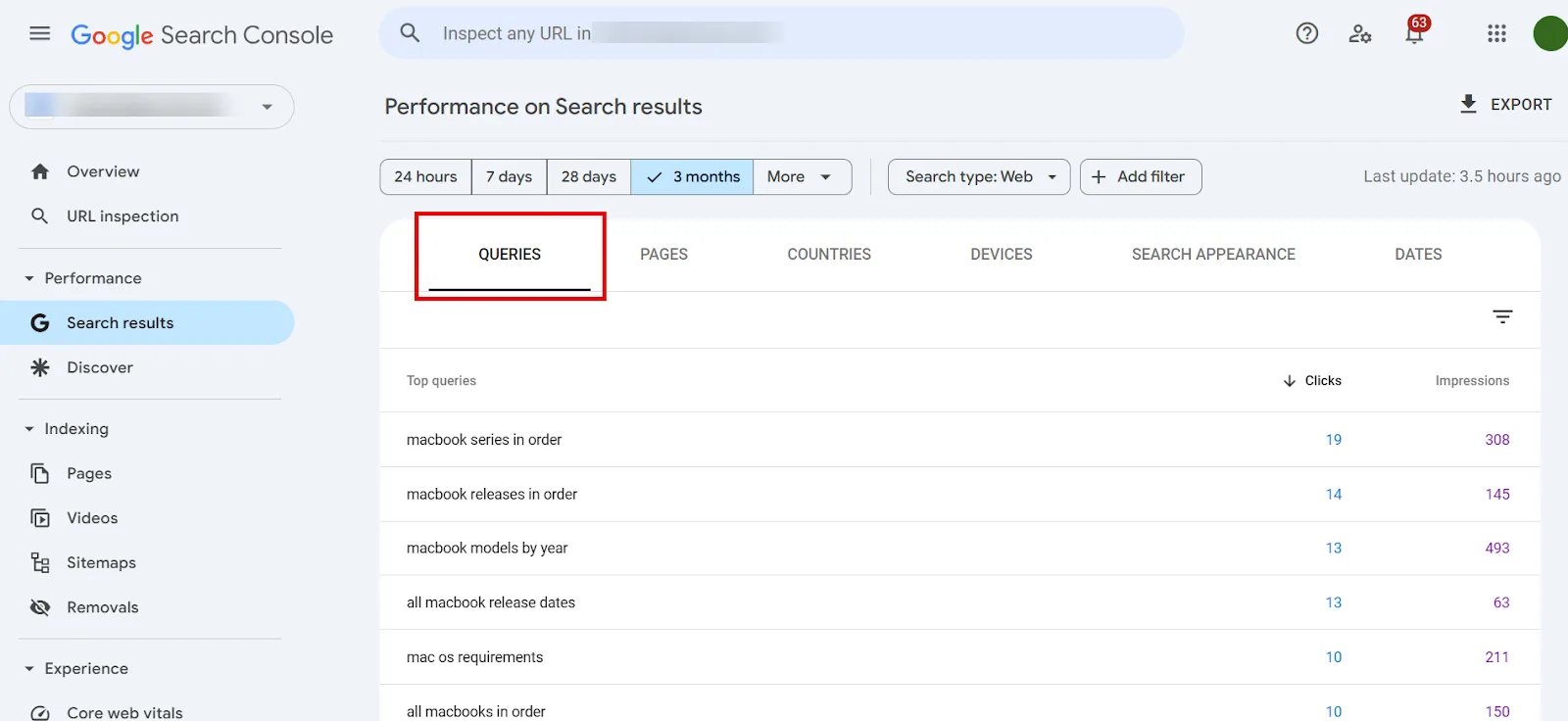
↳ Pages: which URLs on your site actually showed up for those queries.
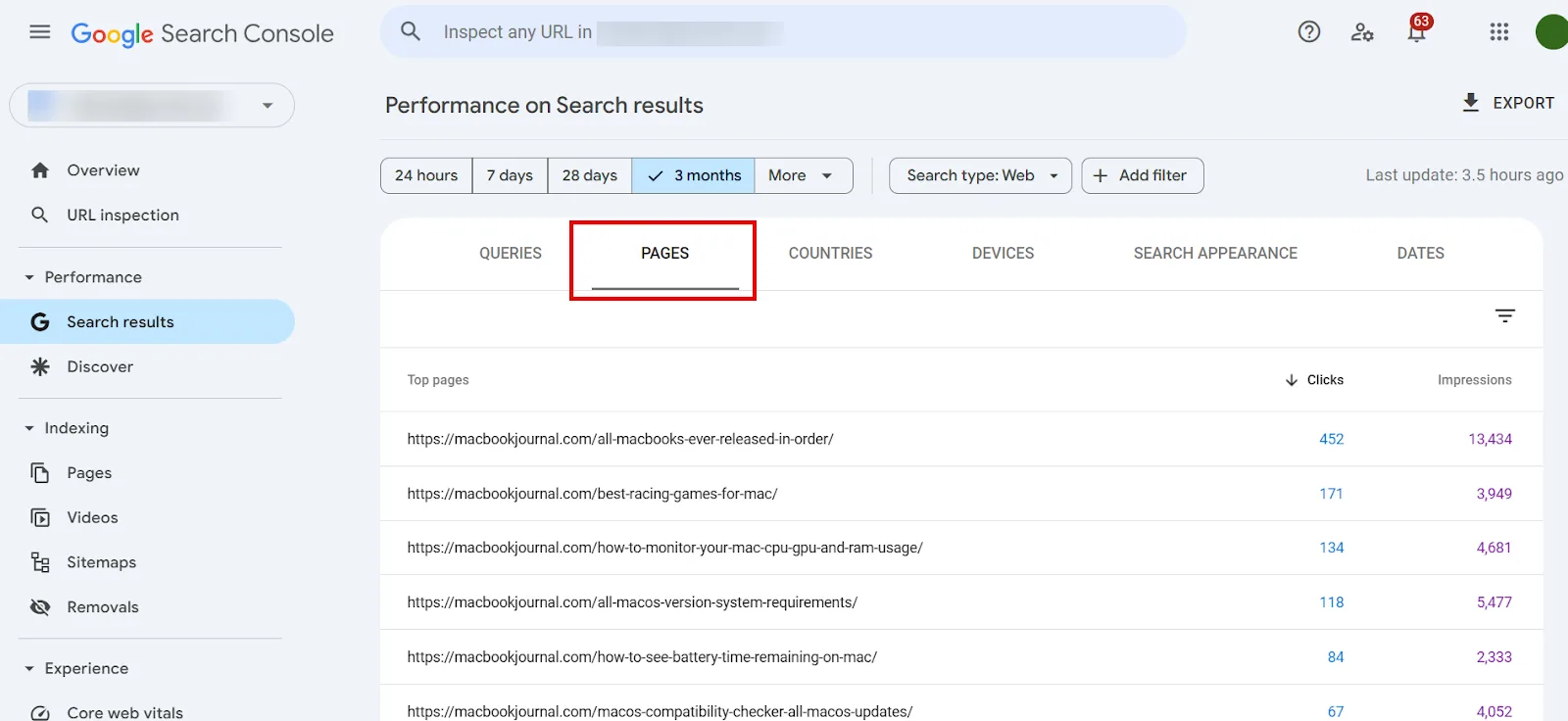
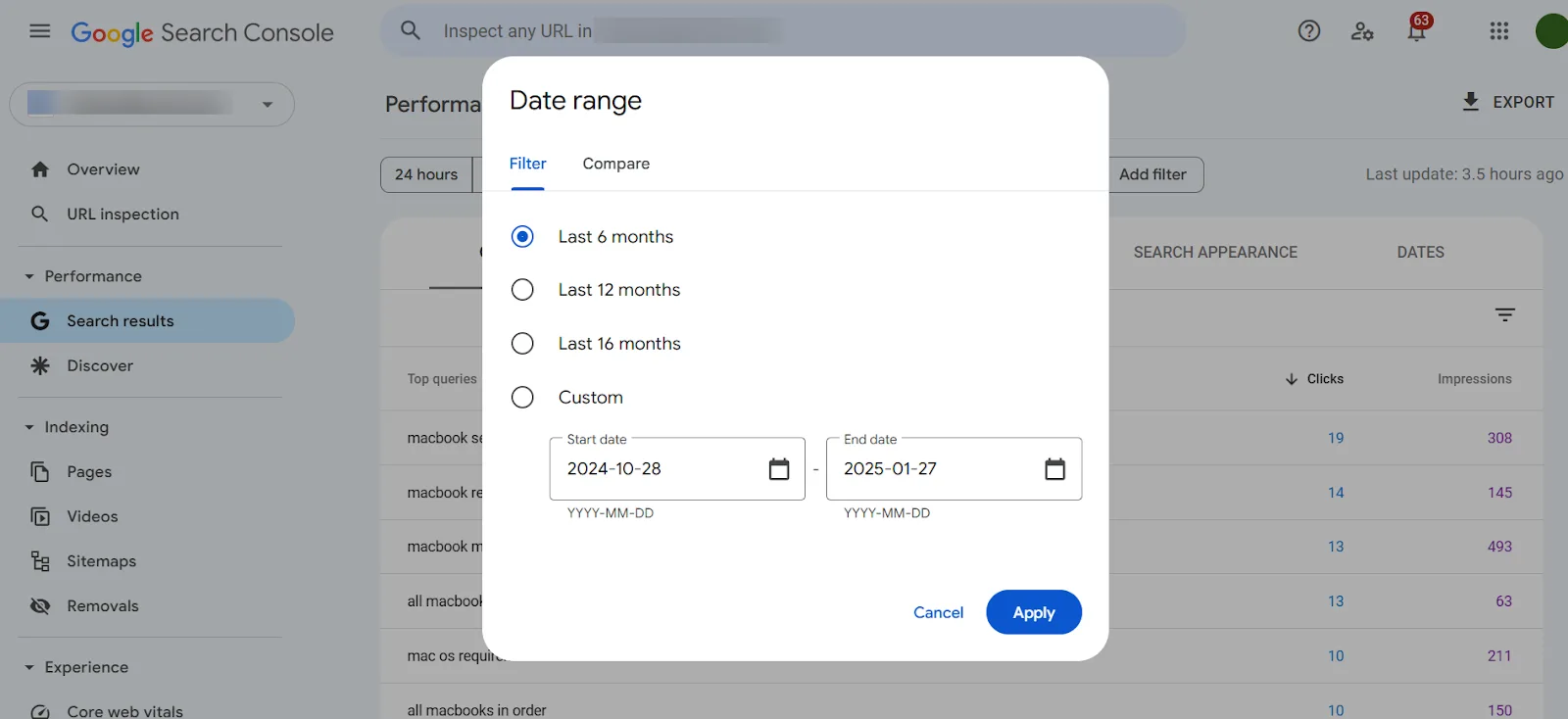
You can filter by date range (past 3 months, up to 16 months), device type, and more.
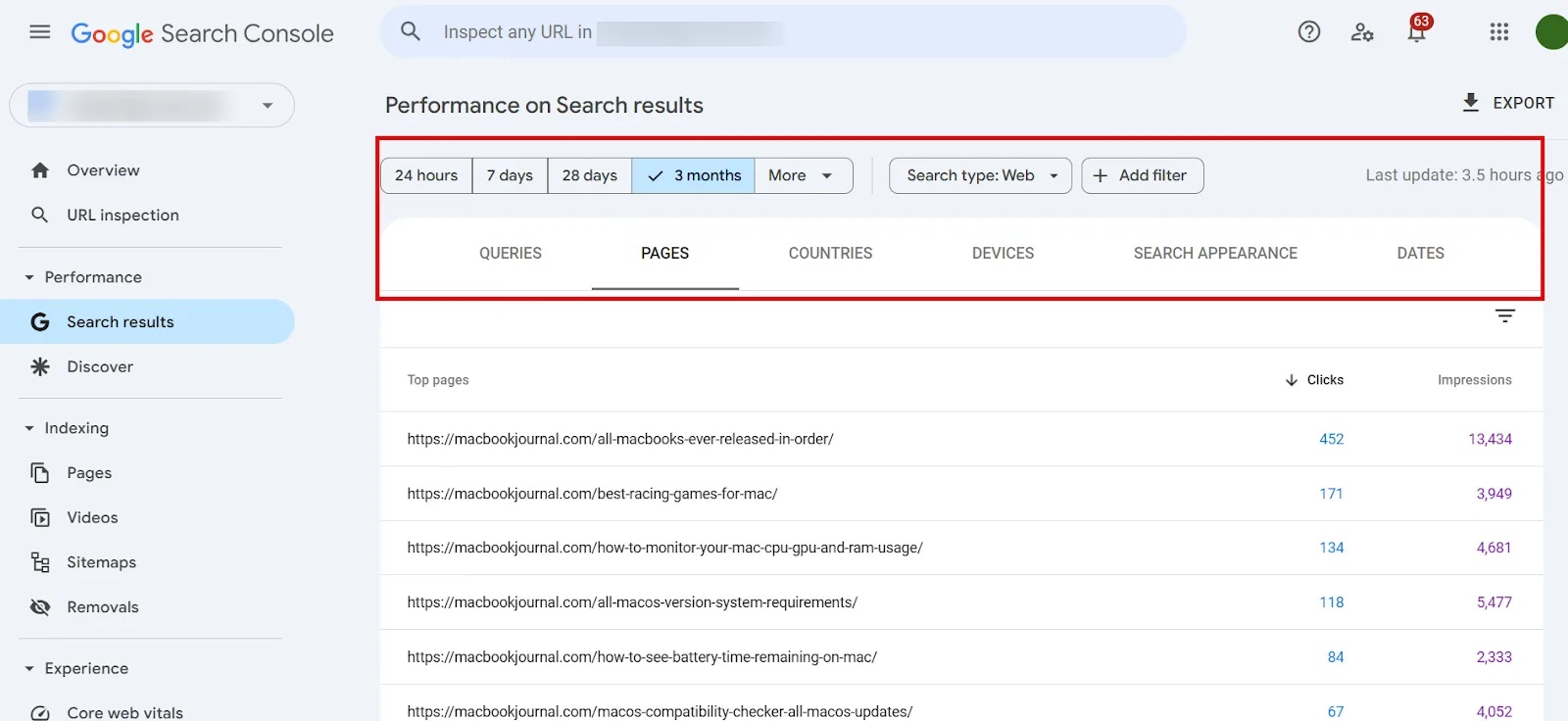
I usually pull 3–6 months of data to catch recent trends, though a longer window can surface bigger patterns.
Now let’s actually put this data to work.
Step 2: Export Your Queries
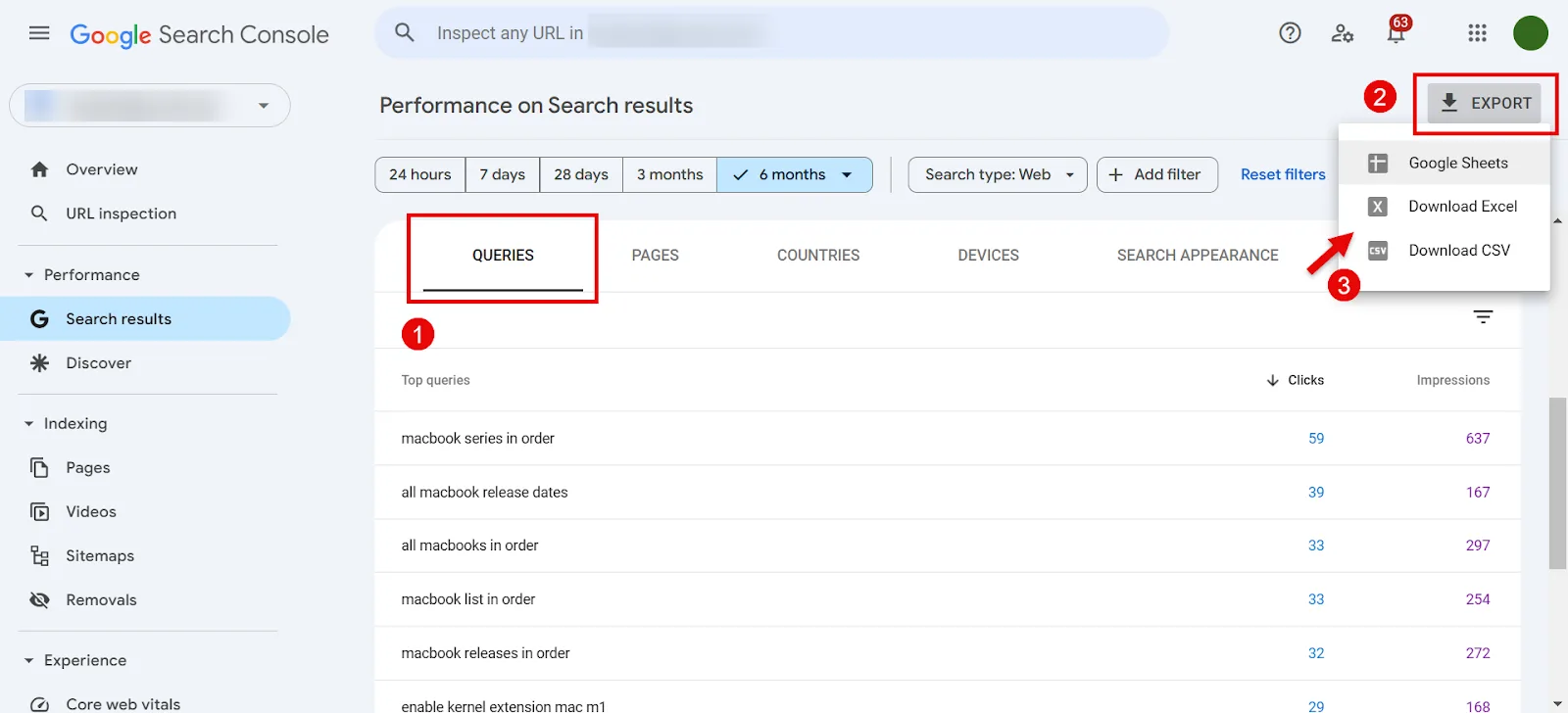
Scroll down to the queries table and click Export (top right) to download as CSV, Excel, or Google Sheets. I use Google Sheets myself.
The export gives you Query, Clicks, Impressions, CTR, and Average Position for each query your site ranks for, based on GSC’s sample.
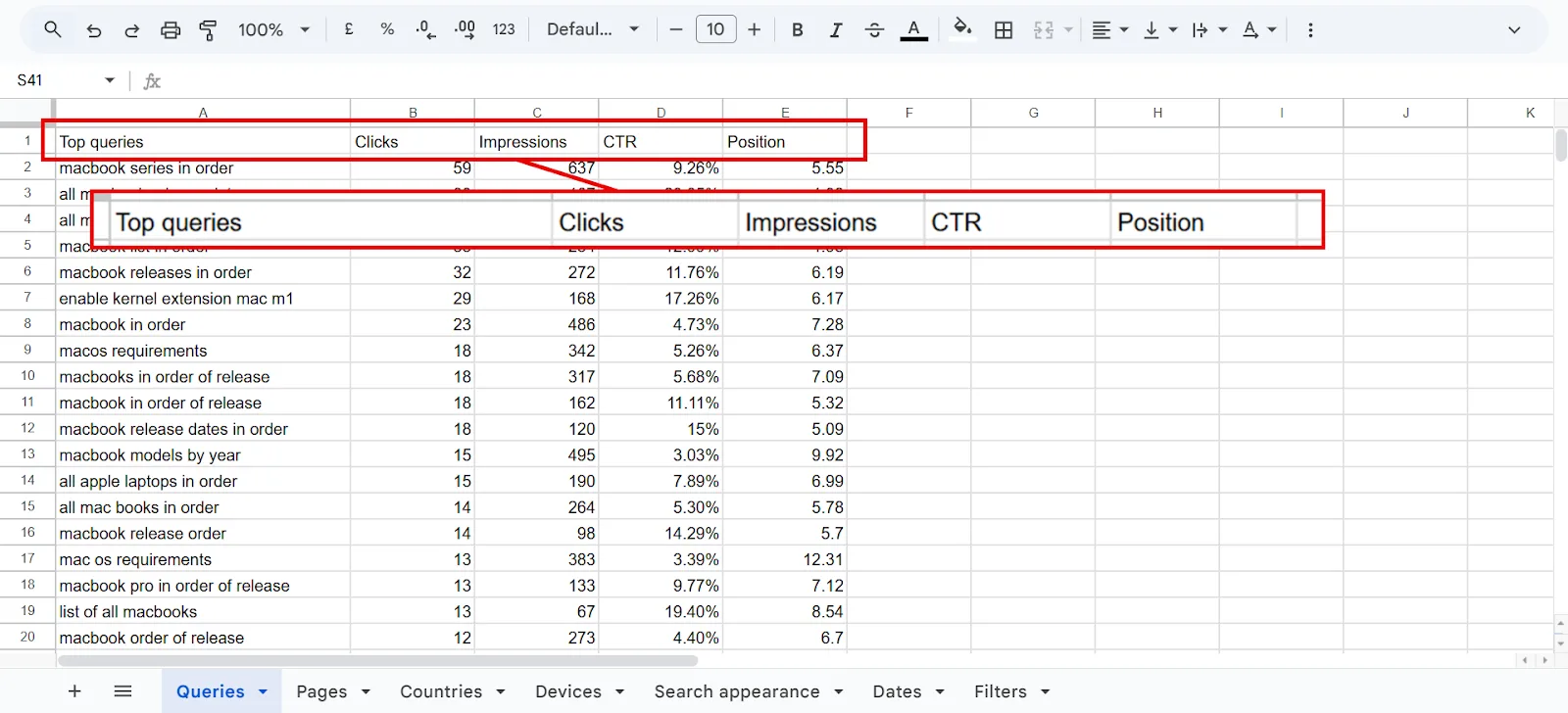
Worth knowing: GSC caps out at 1,000 rows per report, so a large site won’t get every single query. Still plenty to work with.
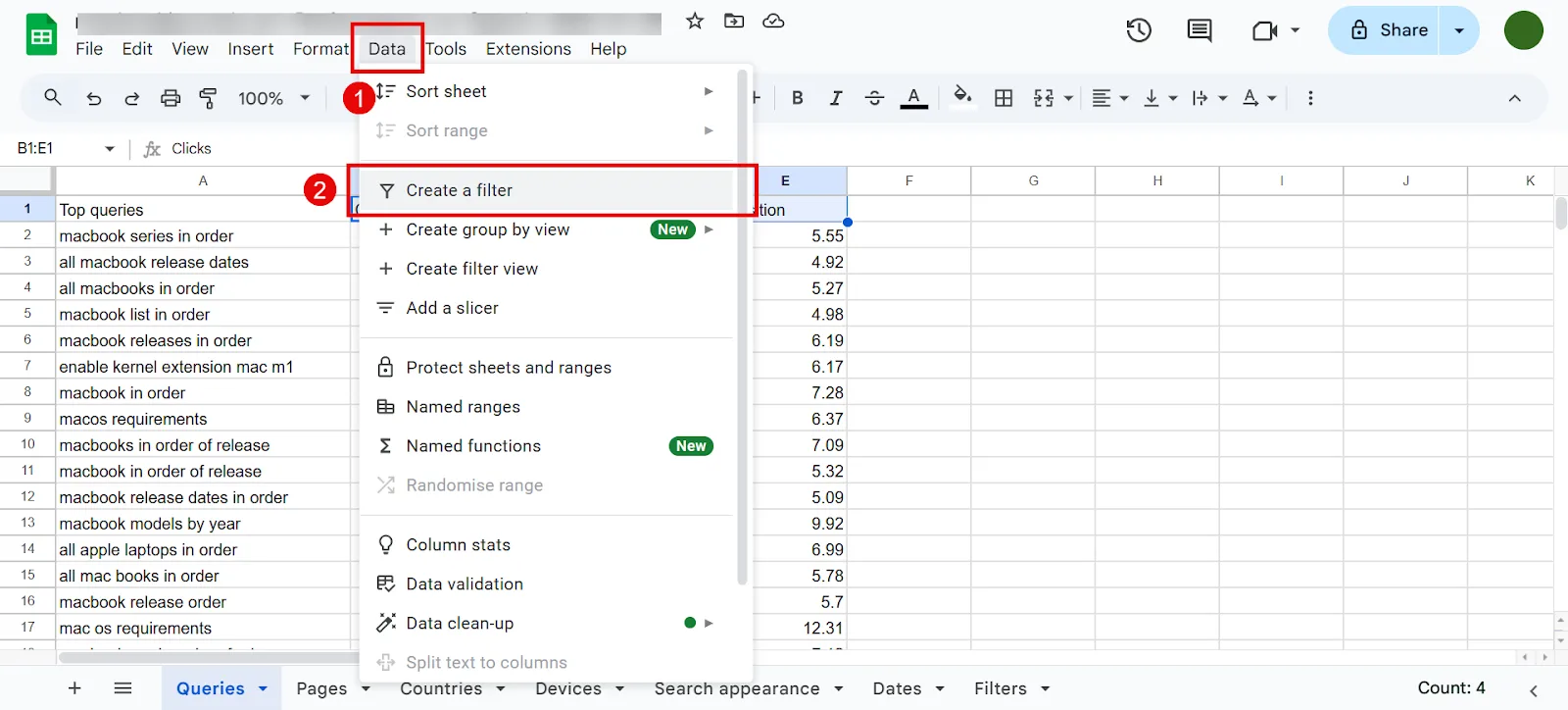
Add filters to your metrics columns (Clicks, Impressions, CTR, Position). You’ll want these once you start sorting in the next steps.
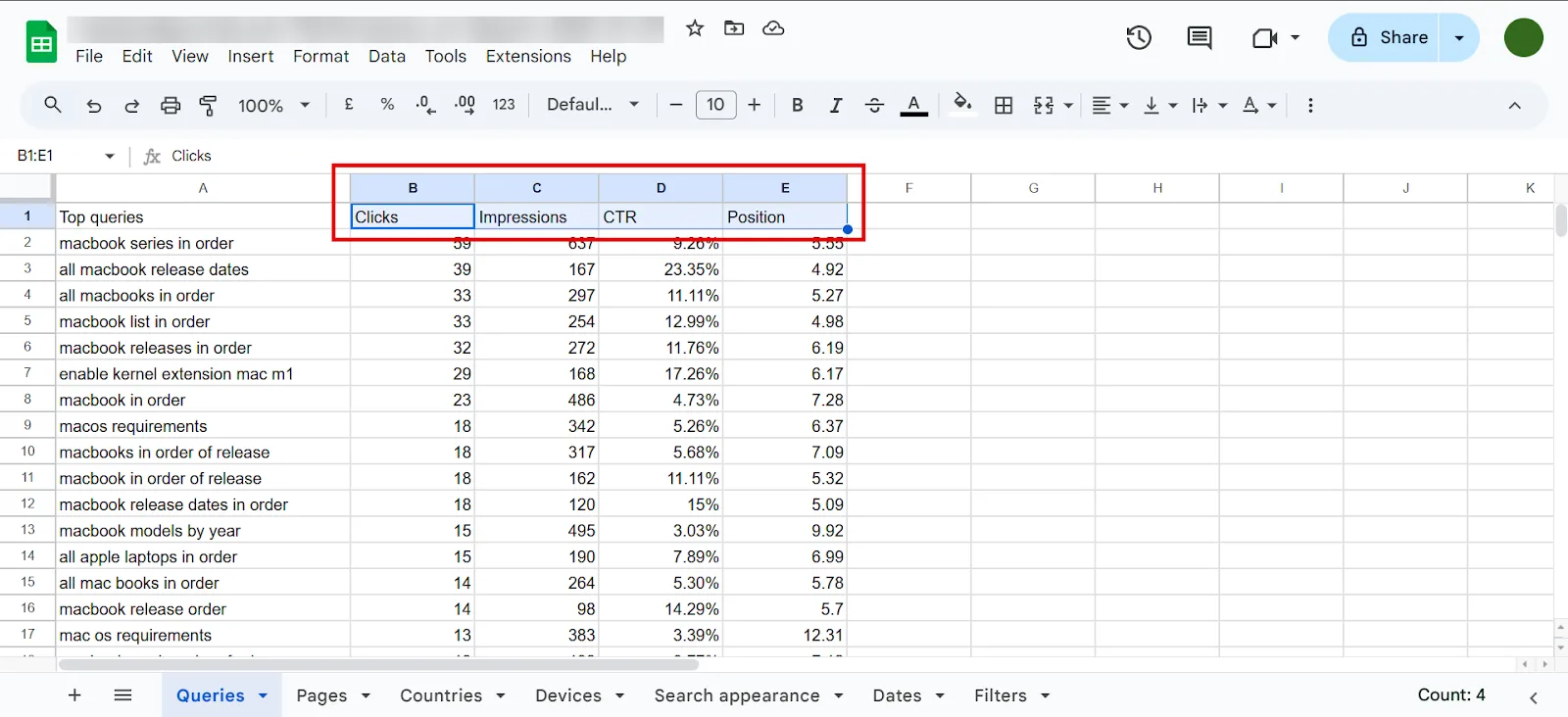
Click Data → Create a filter.
Step 3: Identify Your Top-Performing Keywords
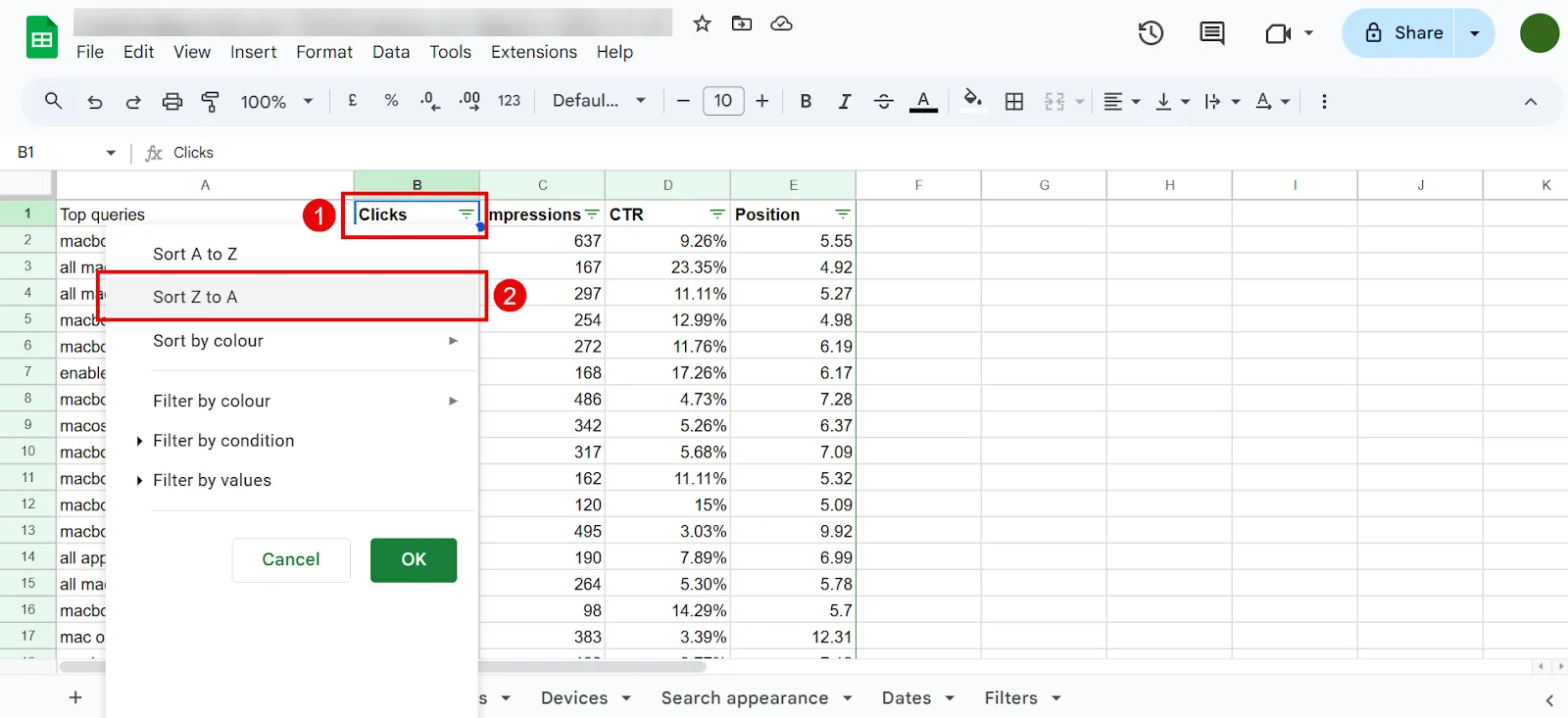
a. Sort by Clicks
Sort the Clicks column in descending order. Whatever floats to the top is already working for you.
Paste these into your template.
b. Check their position
If a keyword sits around positions 1–3, small tweaks (a refreshed title or meta description) can squeeze out more clicks. Positions 4–9 have room to grow too: more detailed content, better internal links, or a clearer heading structure can nudge them up. Either way, they’re worth adding to your list.
Step 4: Spot Underperforming Keywords (High Impressions, Low CTR)
Some queries rack up impressions but barely any clicks. That usually means you’re stuck on page 2, or your snippet just isn’t compelling enough to click.
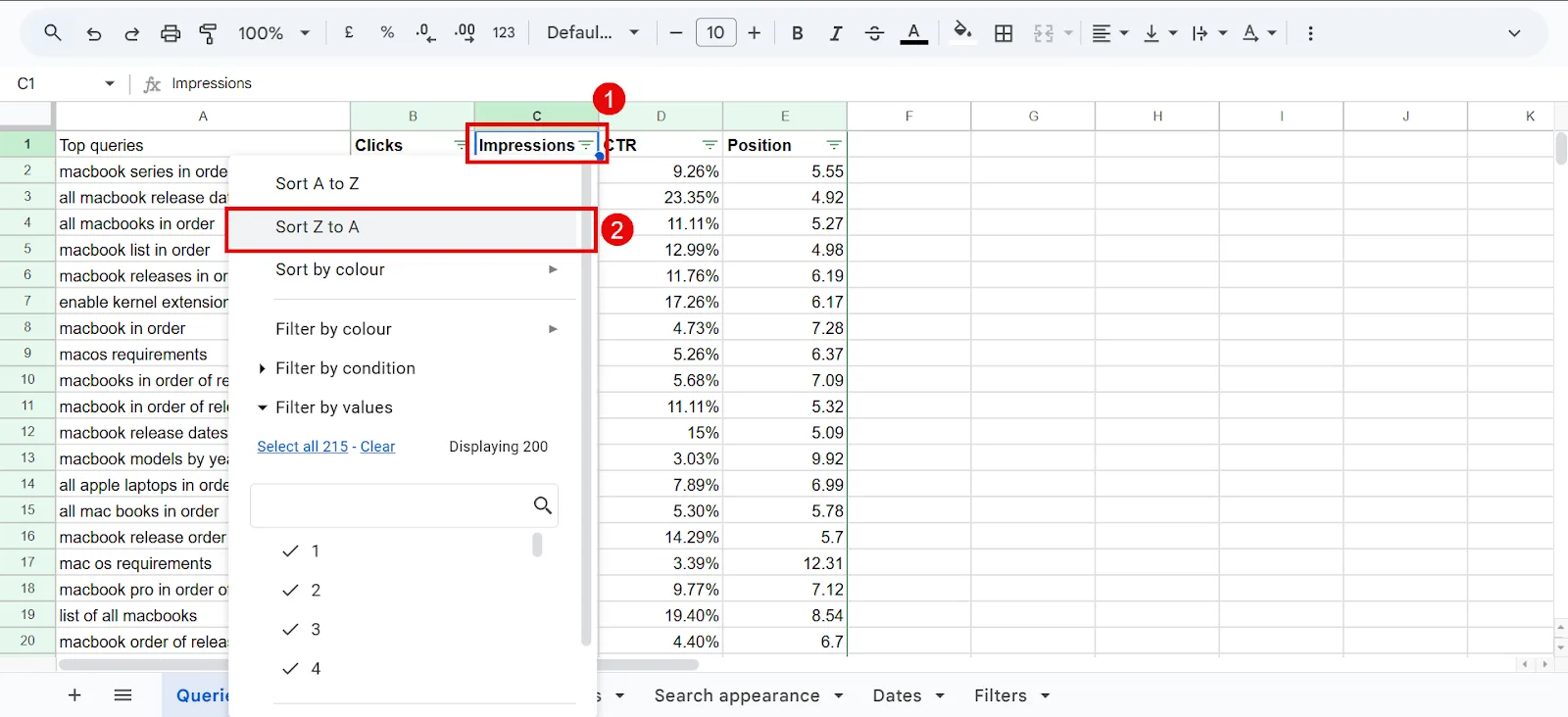
a. Sort Impressions descending
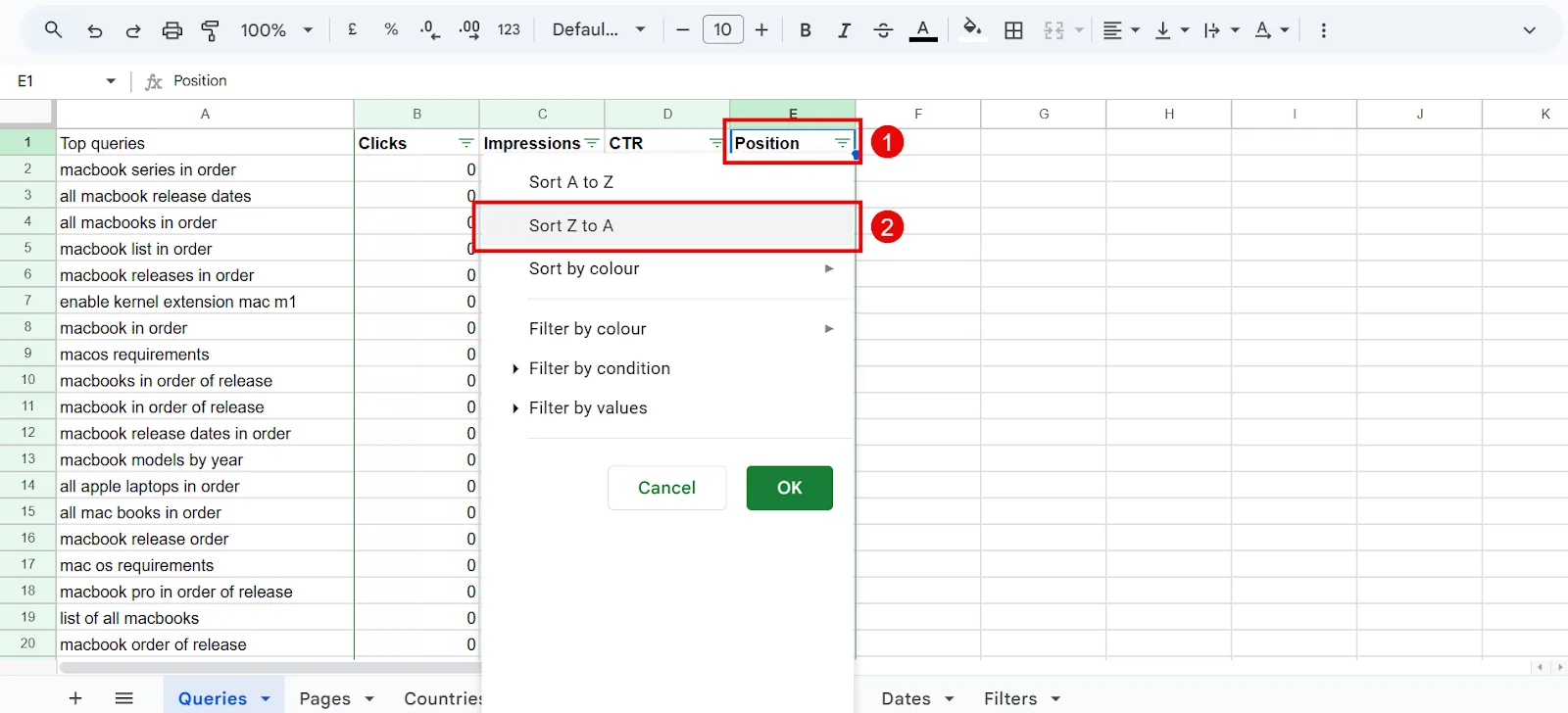
In Google Sheets, select the Impressions column and sort Z to A.
Whatever’s at the top has the most visibility already.
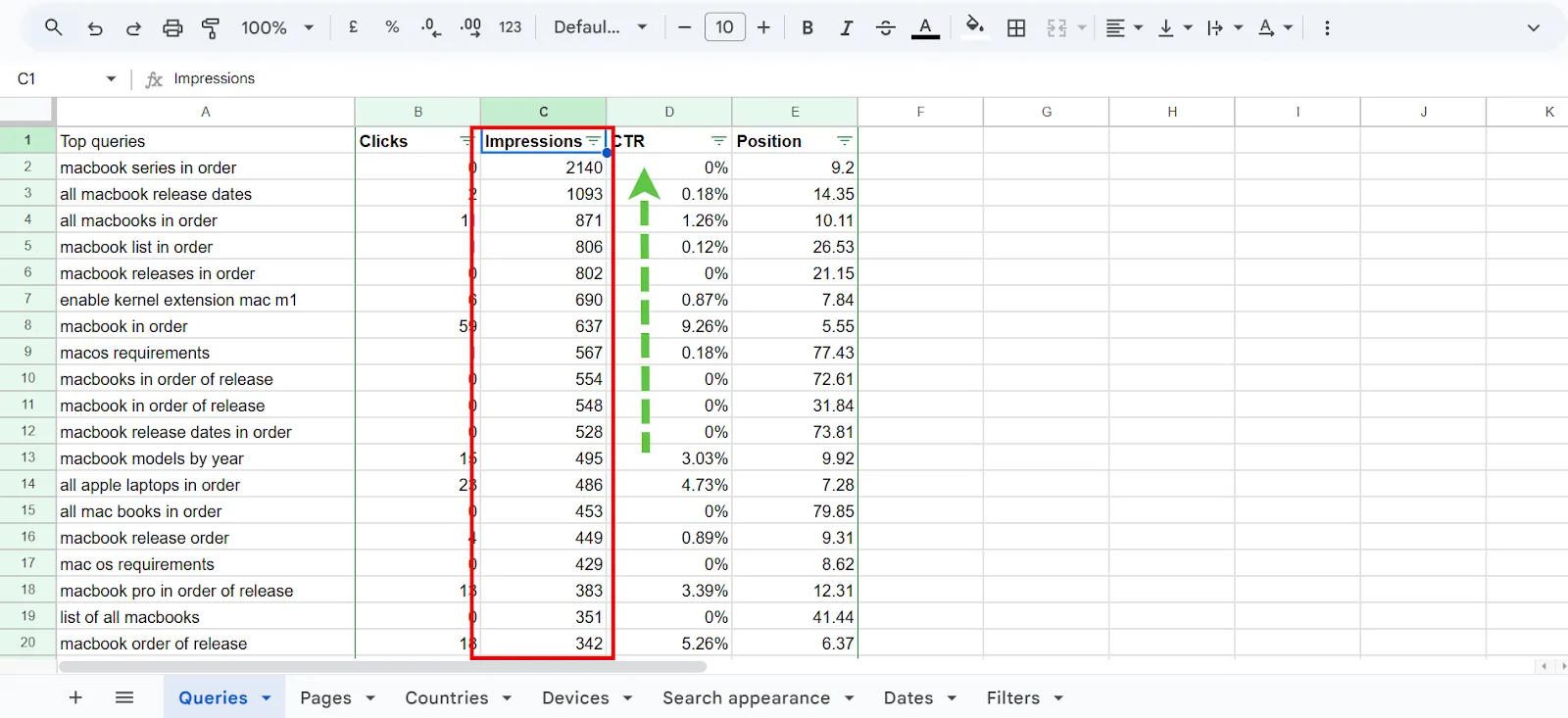
Add these to your list. You’ll use them to rewrite titles and meta descriptions to be more clickable.
b. Compare CTR against position
Top-5 position but CTR under roughly 5%? Your title tag or meta description probably isn’t matching what people are actually looking for. Save these to rewrite with more direct, benefit-focused language.
Ranking on page 2 or 3 (roughly positions 10–30) is what’s called “striking distance”: you’re close enough that small improvements can push you onto page 1. Worth saving too.
↳ Finding underperforming keywords with Semrush
I prefer Semrush’s Domain Overview for this, it’s fast. Enter your domain and hit Search.
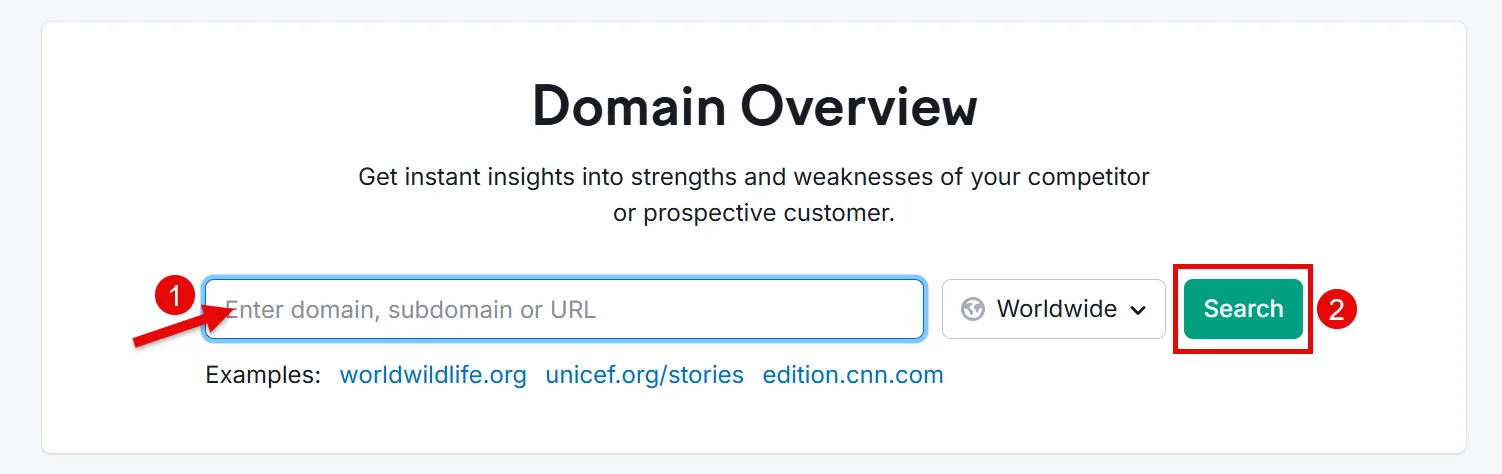
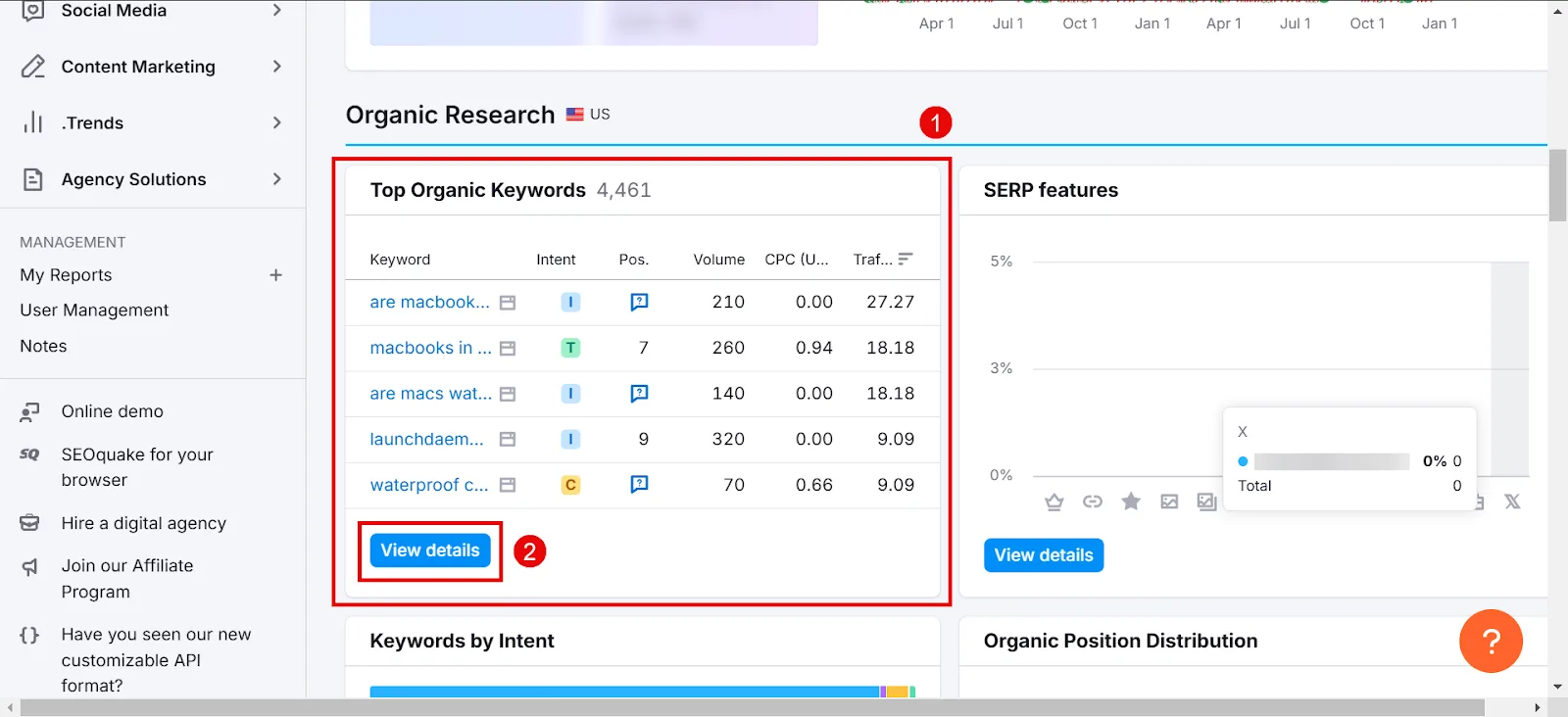
Scroll to Top Organic Keywords, click View details.
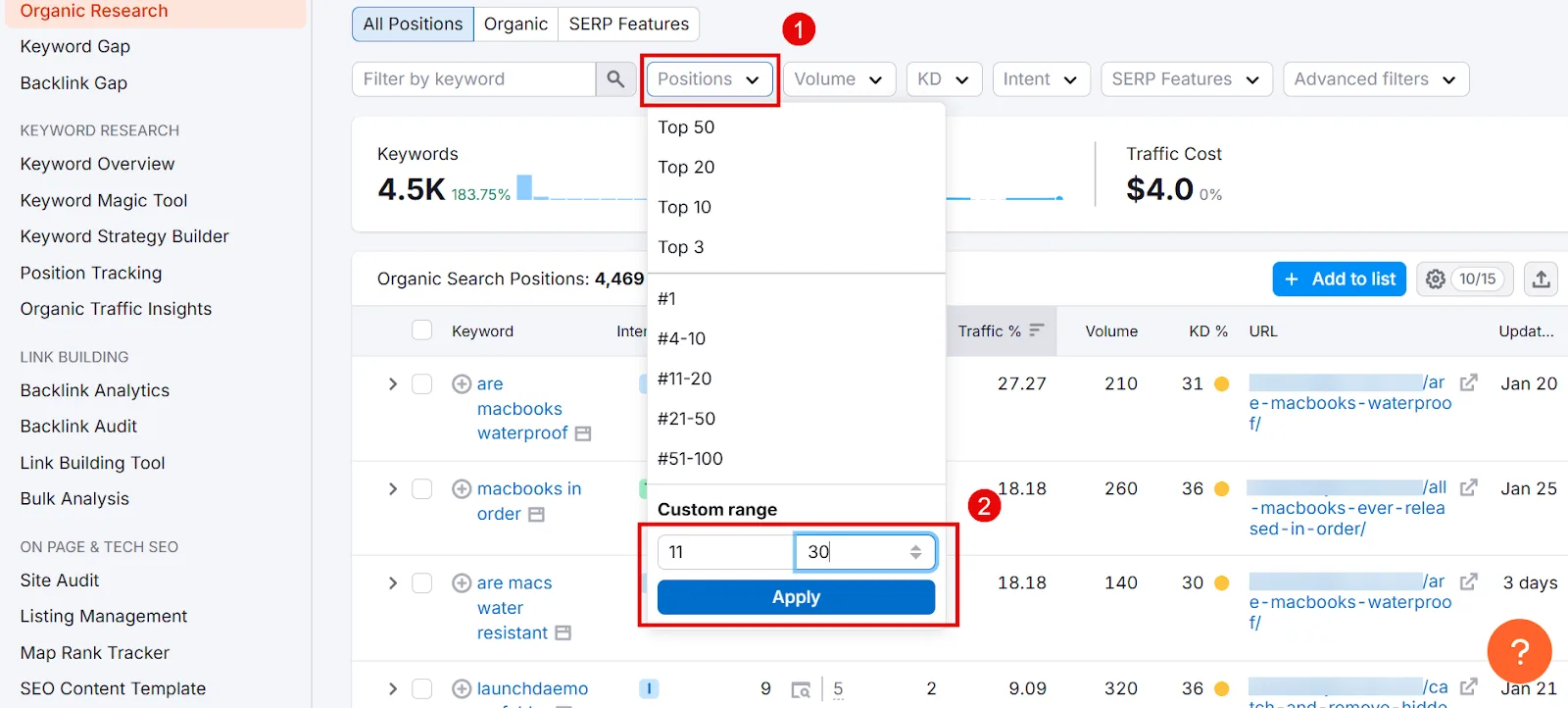
Filter Positions to a custom range of 11–30 and apply. That shows you keywords sitting just off page 1.
Pick the ones with decent metrics and add them to the template.
Step 5: Find “Easy Win” Keywords for Each Page
Now switch from queries to individual pages, so you can spot quick, targeted improvements per page.
Open the Pages tab and pick a page that matters (your best blog post, a key product page).
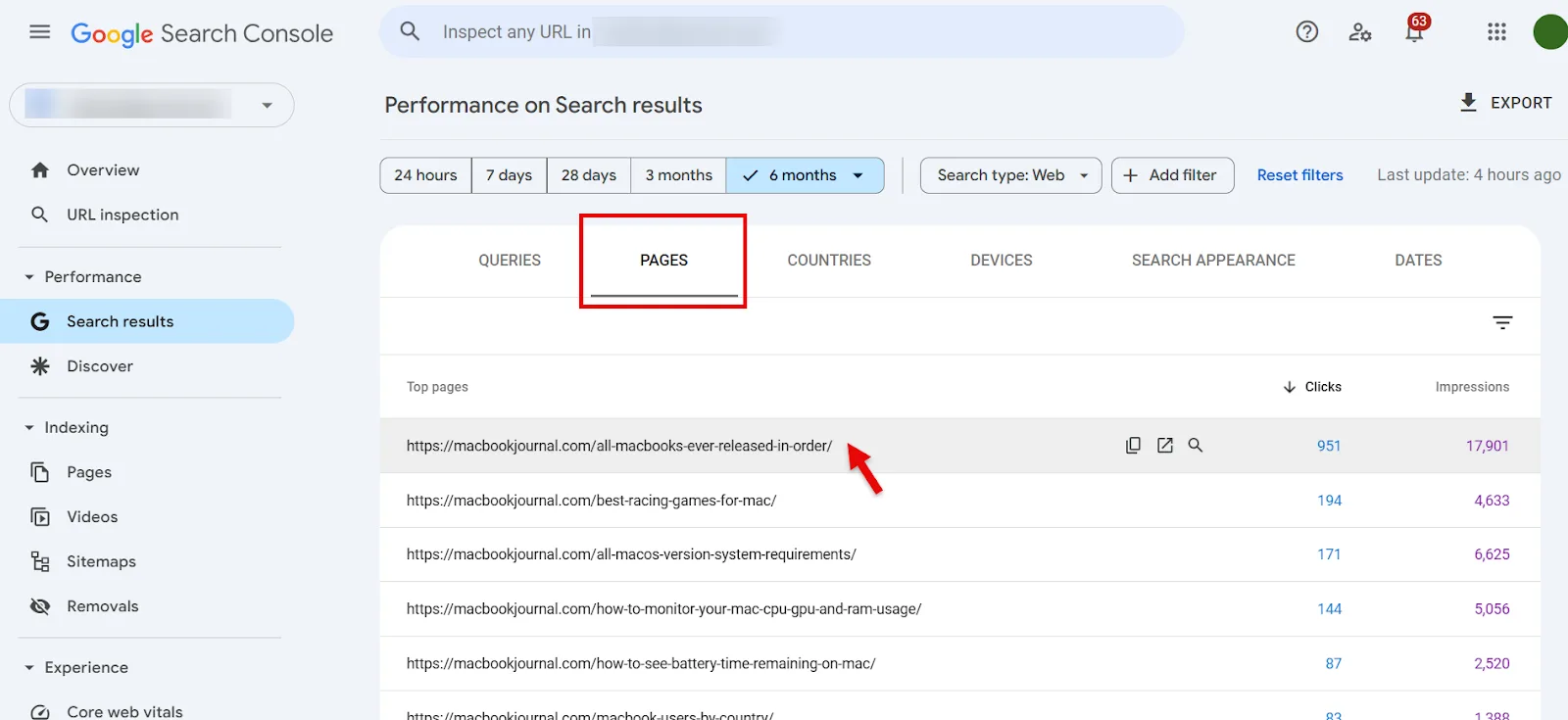
GSC filters down to just the queries that page ranks for.
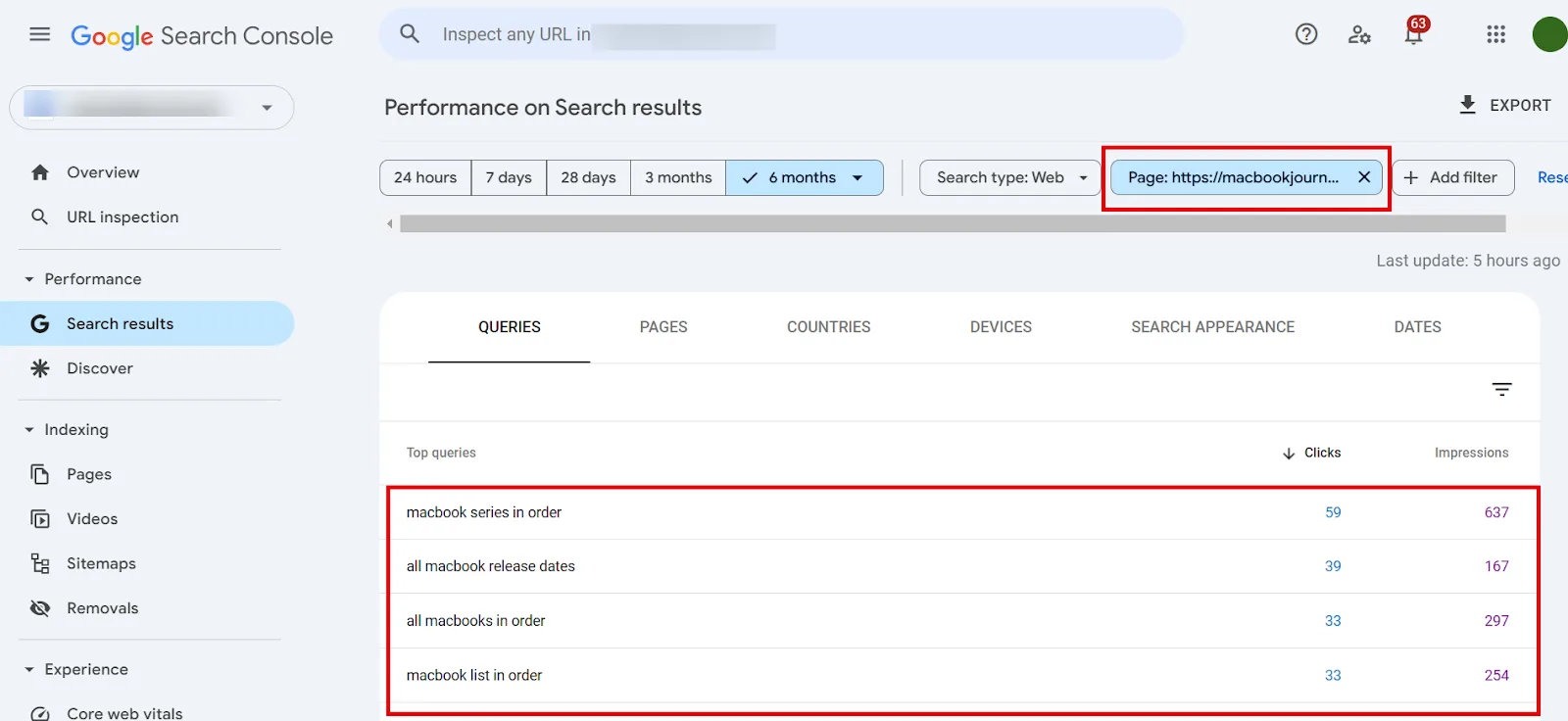
If a relevant query shows up that you never actually address in your headings, that’s your opening: add a subheading or FAQ on that exact topic. Sometimes 100–200 more words is all it takes. If “best budget macbook” shows up under your general “MacBooks” page, for instance, a section on budget-friendly picks would match that intent directly.
If you’re seeing several queries that stray pretty far from the page’s core topic, that’s usually a sign it deserves its own post or product page instead. Log these “easy win” queries under the page they belong to, with a quick note like “add bullet list on budget-friendly accessories.”
Step 6: Find Brand-New Keyword Opportunities
Every so often you’ll spot queries ranking around position 30–50 or further back. If they’re relevant but barely covered on your site, they’re worth adding to your list for a re-optimization pass.
Sort by Position, descending, and check anything below 30.
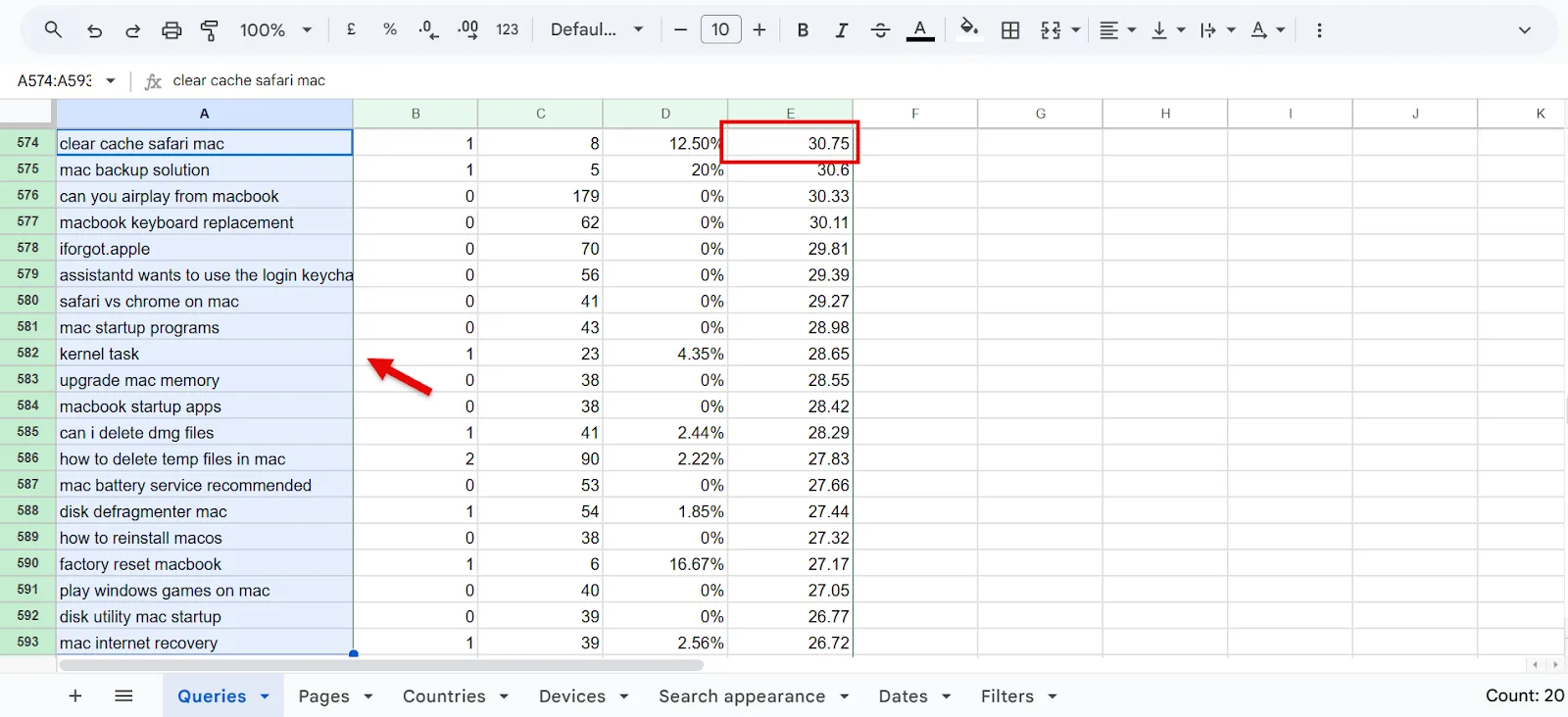
They’re far from page 1, but some of these topics can still be genuinely valuable for your niche. If a topic looks relevant and impressions are decent, it might be worth a whole new piece of content.
Then confirm the intent: copy the query and Google it in an incognito tab. See what format dominates the results, blog posts, product pages, Q&A, whatever it is.
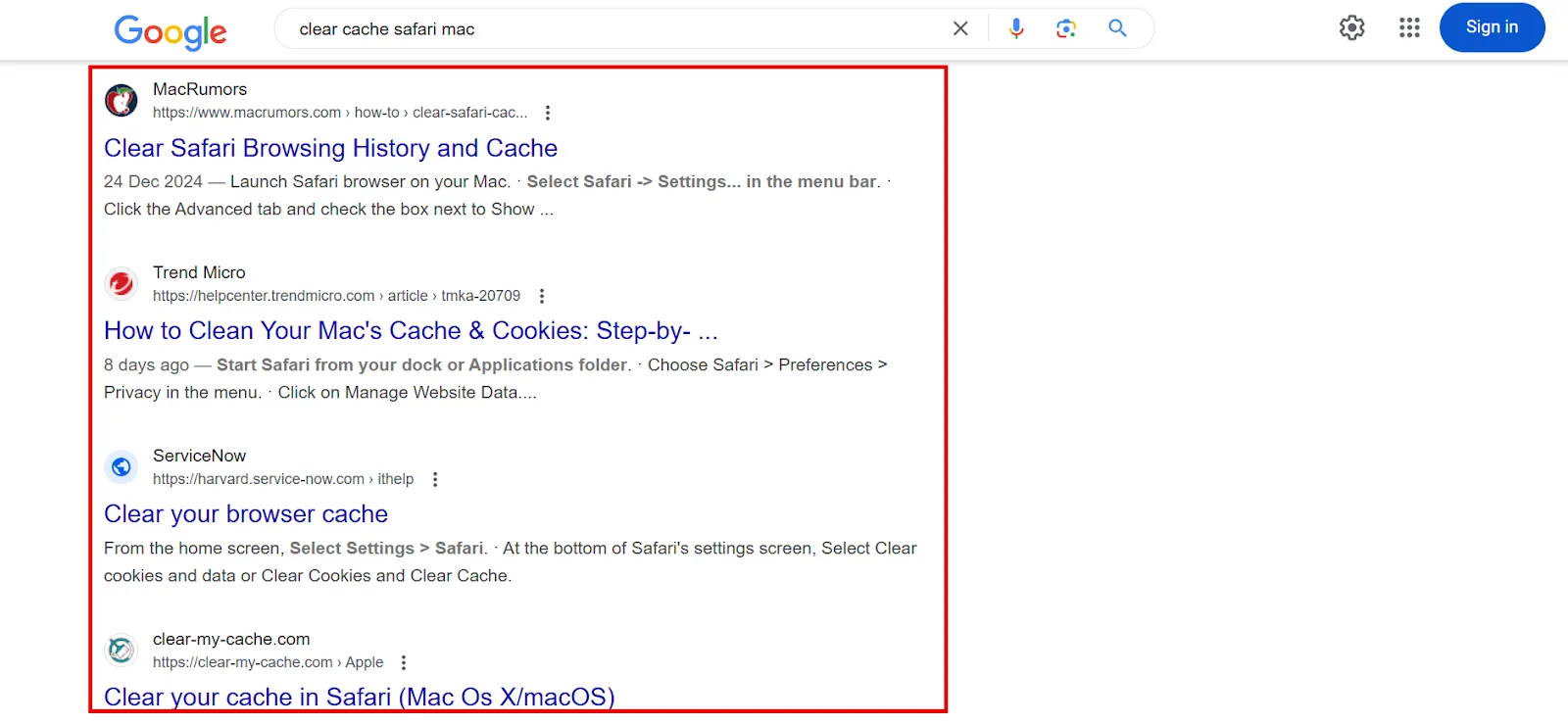
Match that format. Mostly blog posts in the results? Write an in-depth article. Mostly commercial pages? Lean into product details instead. Label these “Brand-New Opportunities” in your template, and note whether you’ll build something new or expand an existing page.
Step 7: Validate with Semrush and Find Related Keywords (Optional)
By this point you’ve got a solid list of candidates. But which ones are actually worth the effort? Running each one through Google manually to gauge intent works, but it’s slow. This is where I bring in Semrush to validate and prioritize.
Open Semrush’s Keyword Overview tool for bulk analysis. Paste in up to 100 keywords and hit Search.
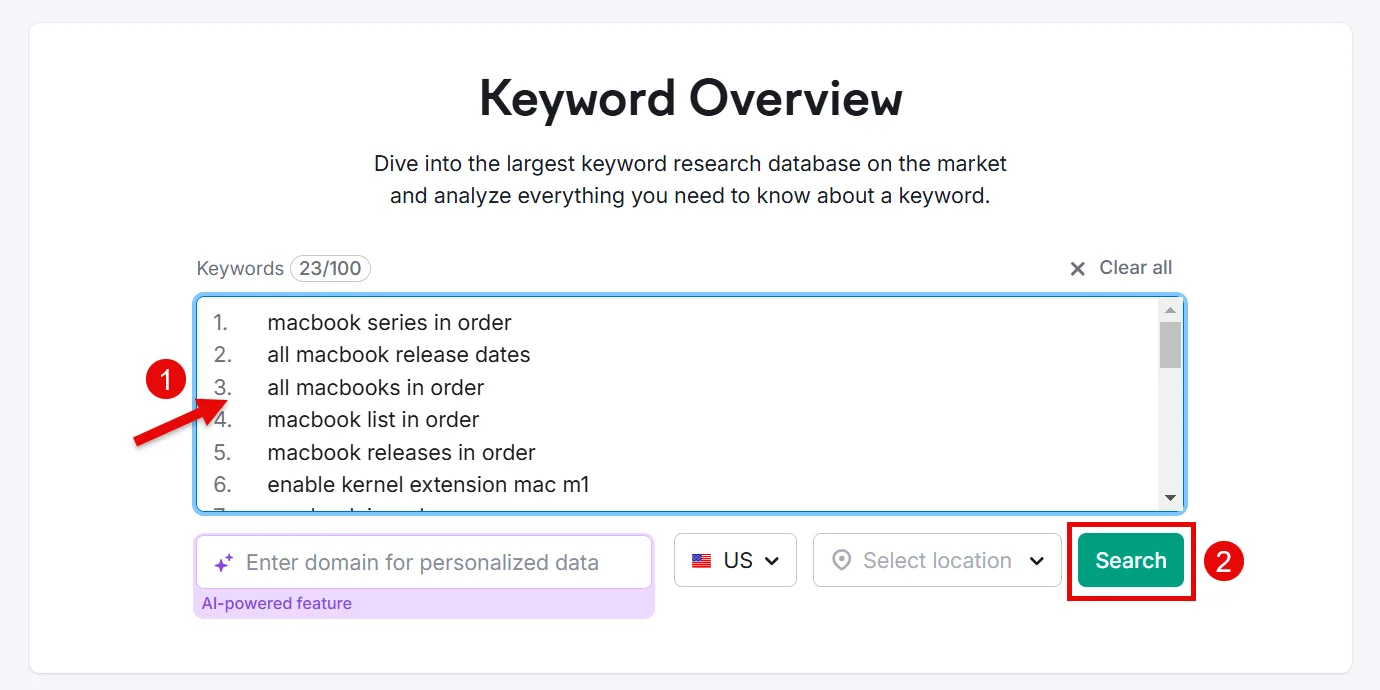
You’ll get search volume, difficulty score, search intent, and more for each one.
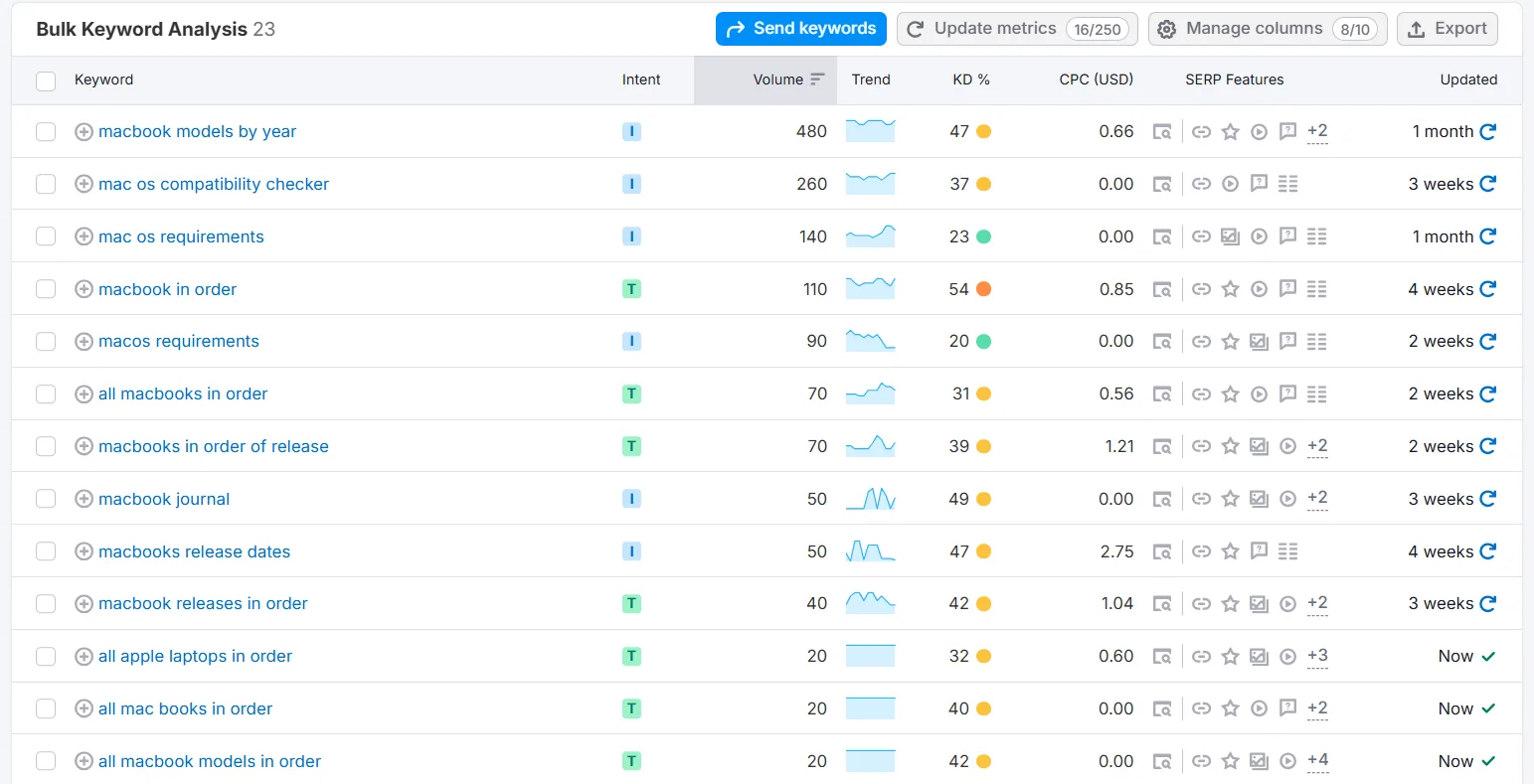
Use that to prioritize. Then take your strongest performers (highest clicks) and run them through the Keyword Magic Tool to surface related terms.
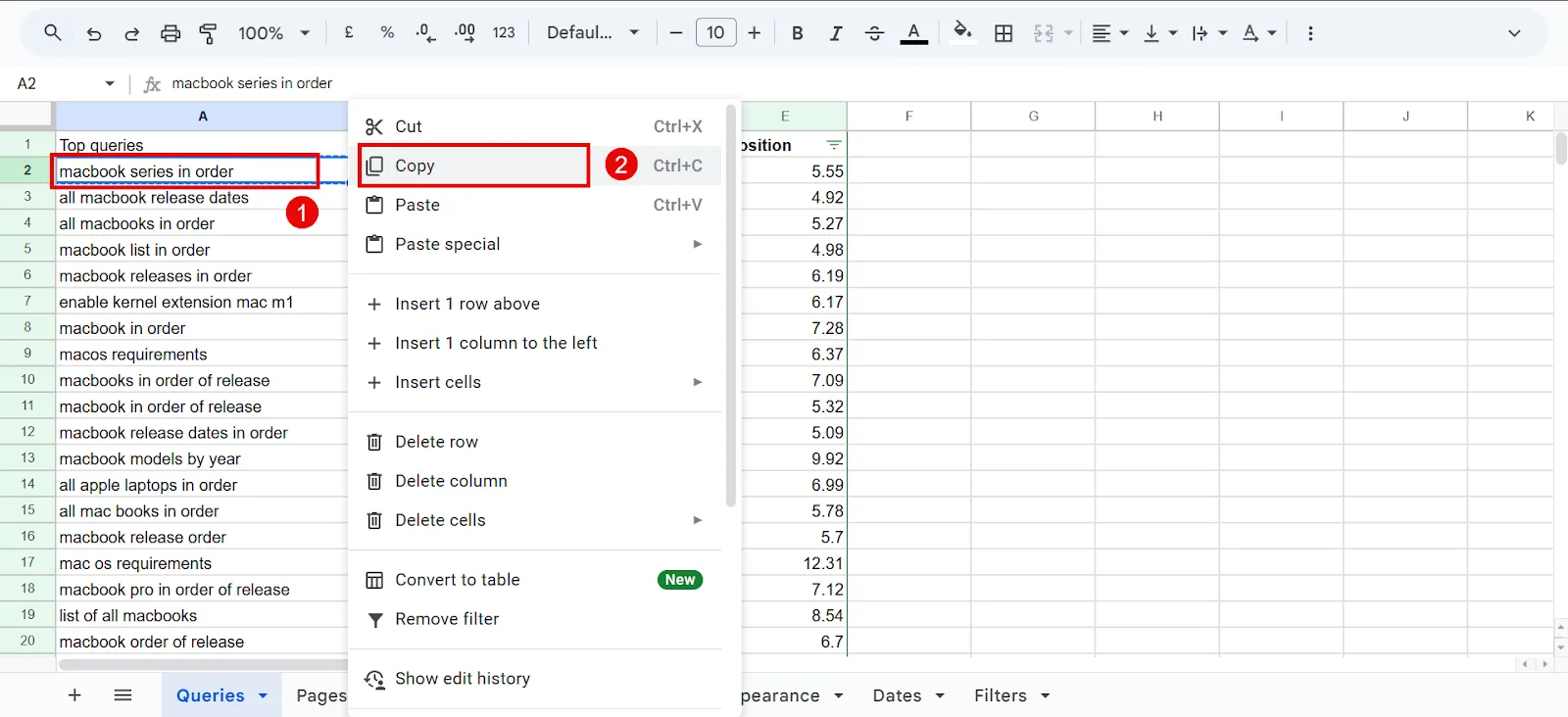
Open Keyword Magic Tool, paste the keyword, hit Search.
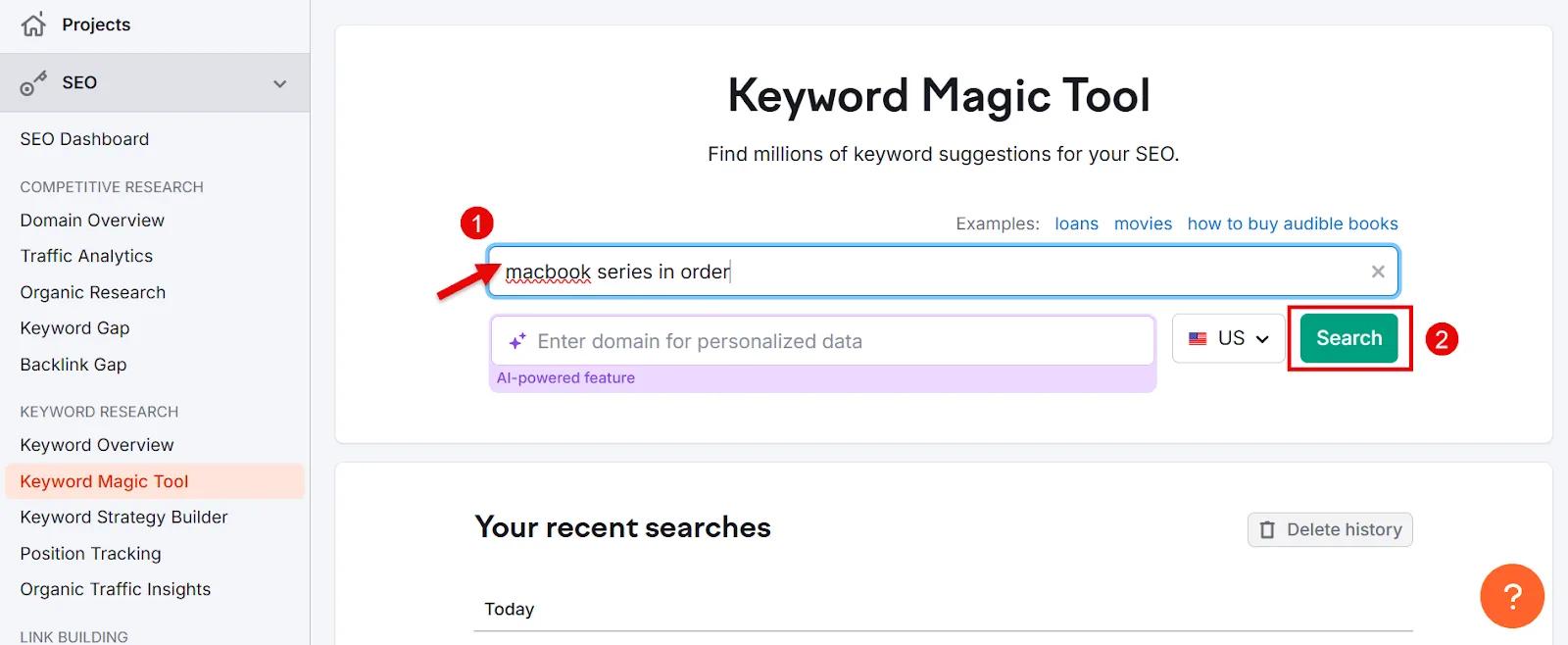
You’ll see monthly search volume, keyword difficulty, and related phrases, enough to tell if it’s worth optimizing more aggressively. Select Related to pull terms connected to what you searched.
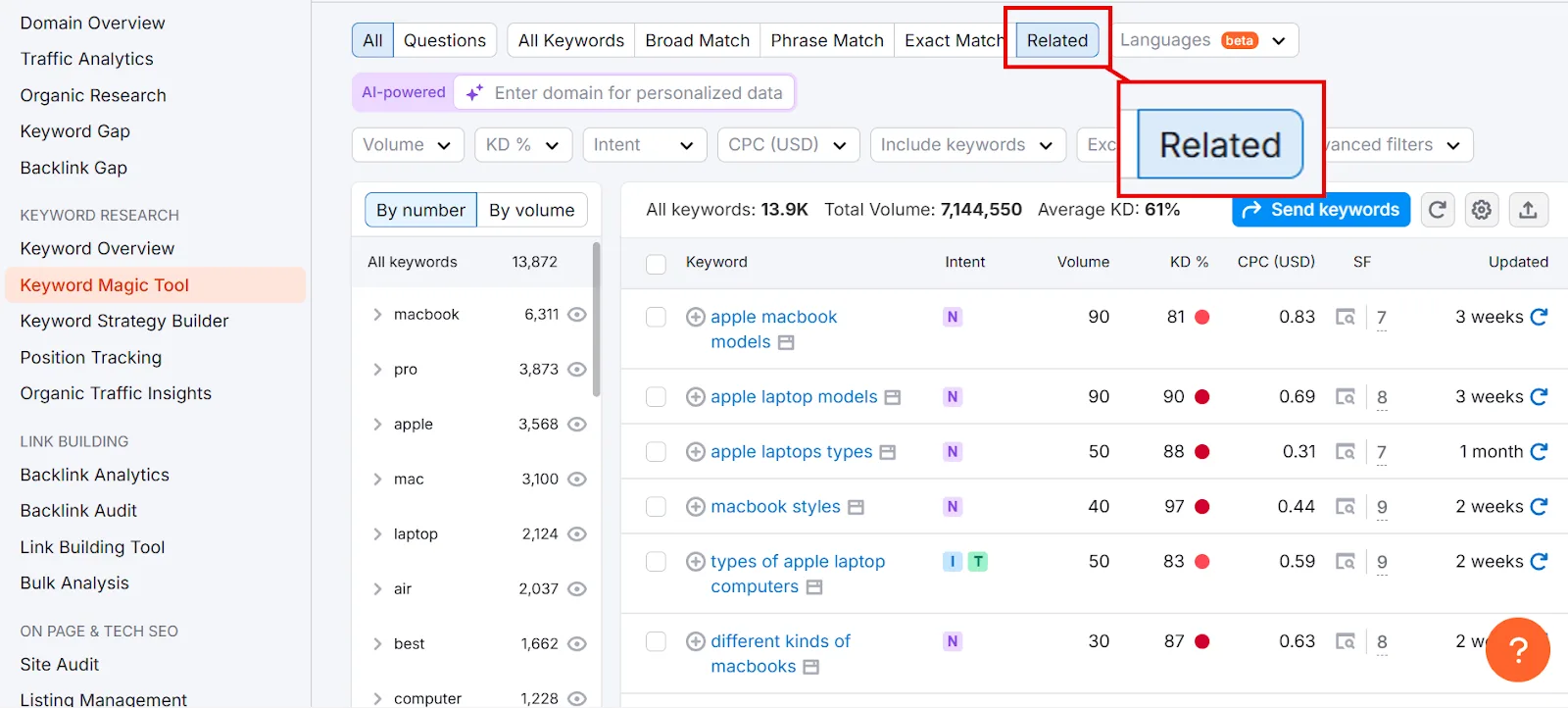
Filter by Volume and KD% to narrow down to related keywords with decent search volume and manageable competition.
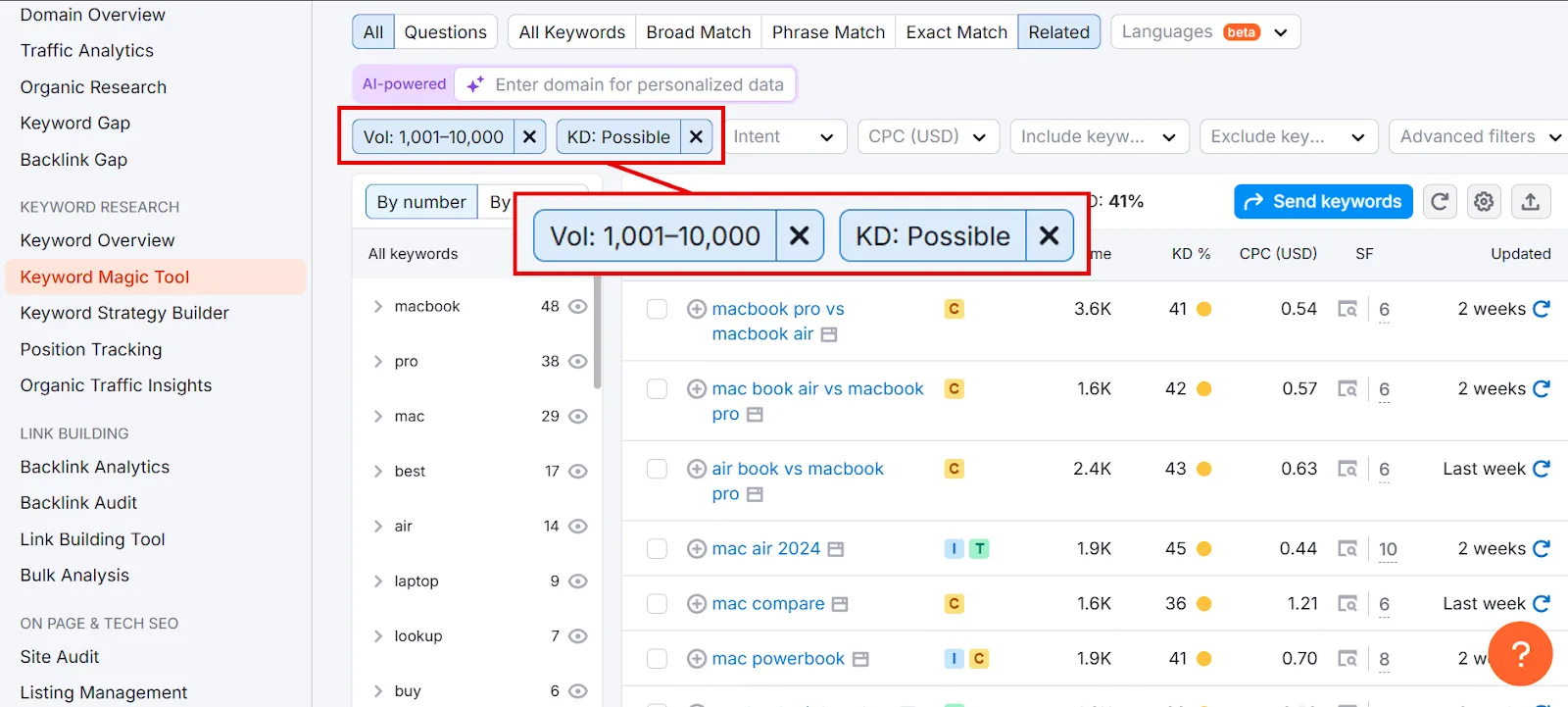
Some of these will be a good fit for new subheadings, others for entirely separate posts if the intent diverges enough. Either way, add them to the template.
What to Do With GSC Keywords
Once you’ve pulled keywords out of Search Console, always cross-check the important metrics, search volume, difficulty, and so on, against a reliable SEO tool before you commit time to any of them. Google Trends is a solid free option too if you want to gauge popularity over time.
A few more guides if you want to go further:
↳ VidIQ vs. TubeBuddy, if video is part of your keyword strategy
Frequently Asked Questions
How often should I update my keyword data in Google Search Console?
Refresh your export and re-check queries at least once a month. That gives Google enough time to re-crawl your pages and reflect new data. After a major site change, wait a few weeks before pulling fresh data to see how it actually affected rankings.
What does “average position” really mean if my page ranks for multiple queries?
Google averages the rank for each query, then averages those together into one number. A page ranking #2 for one keyword and #8 for another might show an average position of 5, which can be misleading. Dig into individual query positions rather than trusting the overall average alone.
Why does GSC sometimes hide or omit some of my queries?
Google filters out very low-volume or privacy-sensitive queries to protect user anonymity, and large sites only get a sample rather than every query. It’s usually still enough to guide your strategy, and you can cross-check with Analytics or Semrush for more.
How can I figure out if my CTR is “good” or “bad”?
CTR varies by position, industry, and query intent, but positions 1–3 typically see much higher CTR than 4–10. If you’re in the top 3 with CTR under roughly 5–10%, your title or meta description probably needs work. Comparing your CTR to the average for your position is a quick sanity check.
What if I’m ranking for queries that aren’t relevant to my site?
Check the intent first, sometimes it’s close enough that a tweak to existing content can capture it legitimately. If it’s driving low-quality traffic or high bounce rates, clarify your content so you naturally stop ranking for it. Truly unrelated, sporadic queries are usually safe to ignore; Google tends to drop them over time anyway.
Is there a simple way to compare my GSC keywords to competitors’ keywords?
Not directly in GSC, it doesn’t show competitor data. A third-party tool like Semrush or Ahrefs can reveal keywords competitors rank for that you don’t, which you can then combine with your own GSC data.
What if a query has zero clicks but decent impressions? Should I still target it?
Often yes. Check whether your title and description actually answer the query, check your position (page 2 just needs a push), and check whether the format matches intent (a list of tips vs. a product page, for example). Any of those can be the fix.
Should I separate brand vs. non-brand keywords in GSC?
It helps. Brand queries (like “YourBrand reviews”) reflect people who already know you, while non-brand, generic queries show how new people discover you. Keep an eye on both, but put more SEO effort into the non-brand terms if growth is the goal.
How do I know which GSC queries to optimize for first?
Prioritize queries with moderate-to-high impressions but low CTR, anything sitting in striking distance on page 2, and anything that aligns with your actual business goals. Queries hitting all three are usually the best return on effort.
How can I measure the success of my GSC optimizations over time?
After making changes, give Google 2–4 weeks to recrawl. Then compare date ranges in the Performance report for clicks, impressions, and CTR, check whether target queries moved up in position, and look at engagement metrics in Analytics to see if the new content actually resonates.
How do I do keyword research with Google?
Google Keyword Planner gives you keyword ideas, search volume, and competition data for free, even without running ads. Pair it with Google Trends to see how interest in a term changes over time.
How do I use Google Search Console?
Sign in, add your site, and verify ownership. From there you can track search traffic, fix errors, submit sitemaps, and check indexing issues, essentially seeing your site the way Google does.
Is there a fee to use Google’s keyword research tool?
Google Keyword Planner itself is free. Full exact search volumes are gated behind running Google Ads, but even without ads you still get keyword ideas and estimated ranges that are useful for SEO.
Can I do keyword research for free?
Yes, Google Keyword Planner, Google Trends, and the free tiers of tools like Ubersuggest and Ahrefs all give you enough for basic keyword research without paying anything.
Is SEO free on Google?
Ranking in Google’s organic results costs nothing directly. SEO itself is about optimizing content, speed, and technical issues, which takes time and effort rather than money, though paid tools or expert help can speed things up.
How do I improve SEO with Google Search Console?
Use it to track rankings, fix errors, and submit sitemaps. Regularly check which keywords bring traffic, look for indexing issues, and keep an eye on mobile usability, all of which feed directly into better visibility.
How do I set up Google Search Console?
Go to Search Console, log in, and add your website as a property. Verify ownership via a DNS record, HTML file upload, or another supported method, then you’re in and can start pulling performance and indexing reports.
Is Google Analytics free?
Yes, the free version tracks traffic, user behavior, and conversions, and it’s genuinely enough for most SEO tracking and optimization. Google Analytics 360 exists for larger-scale needs, but most sites won’t need it.